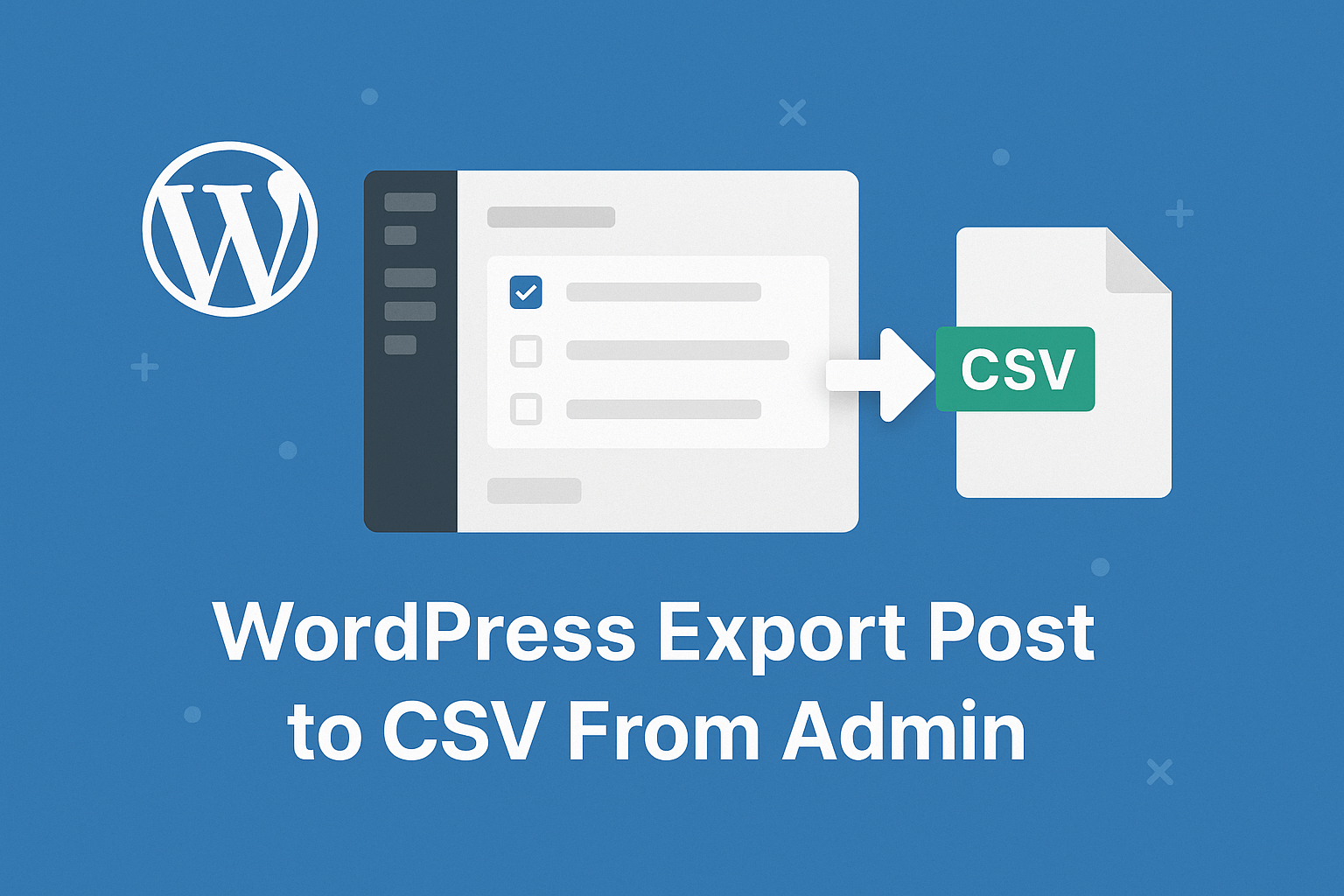
In this article, we’ll explore WordPress Export Post to CSV From Admin
Table of Contents
WordPress is the go-to platform for creating dynamic websites and managing content. As a content creator or website administrator, you may often find the need to WordPress Export Post to CSV From Admin for various purposes, such as data analysis, backups, or migrating to another platform.
We’ll explore an efficient way to WordPress Export Post to CSV From Admin dashboard. This streamlined process will save you time and effort, allowing you to easily extract your post data in a universally compatible format.
What is CSV and Why Use It?
CSV (Comma-Separated Values) is a lightweight, universally accepted data format used for storing tabular data.
Popular tools that support CSV:
- Microsoft Excel
- Google Sheets
- Database systems and analytics tools
Benefits of CSV Export
- Easy to read and edit
- Compatible with almost all systems
- Lightweight and fast
- Ideal for bulk data operations
Why WordPress Export Post to CSV?
Exporting posts from WordPress can help you:
- Analyze blog performance externally
- Share structured data with clients or teams
- Create backups beyond default XML export
- Migrate content to platforms like headless CMS or custom apps
- Feed data into BI tools
The Power of CSV Export:
CSV is a widely supported file format used for data exchange between different systems. By exporting your WordPress posts to a CSV file, you gain the advantage of a versatile format that can be easily opened and processed by various applications, including spreadsheet software like Microsoft Excel or Google Sheets. This flexibility allows you to manipulate and analyze your post data according to your specific needs.
WordPress Export Post to CSV From Admin
Sometimes, you want to share all blog posts or custom post type with someone using csv file. In this case you can do it without plugin by adding following steps.
WordPress provides a good interface for post listing on admin. but, if you want to export all posts to CSV by adding an export button and without the help of the plugin, you can do it by adding the following code in the functions.php file of your child theme.
add_action( 'restrict_manage_posts', 'add_export_button' );
function add_export_button() {
    $screen = get_current_screen();

    if (isset($screen->parent_file) && ('edit.php' == $screen->parent_file)) {
        ?>
        <input type="submit" name="export_all_posts" id="export_all_posts" class="button button-primary" value="Export All Posts">
        <script type="text/javascript">
            jQuery(function($) {
                $('#export_all_posts').insertAfter('#post-query-submit');
            });
        </script>
        <?php
    }
}


add_action( 'init', 'func_export_all_posts' );
function func_export_all_posts() {
    if(isset($_GET['export_all_posts'])) {
        $arg = array(
                'post_type' => 'post',
                'post_status' => 'publish',
                'posts_per_page' => -1,
            );

        global $post;
        $arr_post = get_posts($arg);
        if ($arr_post) {

            header('Content-type: text/csv');
            header('Content-Disposition: attachment; filename="wpposts.csv"');
            header('Pragma: no-cache');
            header('Expires: 0');

            $file = fopen('php://output', 'w');

            fputcsv($file, array('Post Title', 'URL'));

            foreach ($arr_post as $post) {
                setup_postdata($post);
                fputcsv($file, array(get_the_title(), get_the_permalink()));
            }

            exit();
        }
    }
}
In the above snippet, we have added to WordPress hooks. Using first hook, we’ll add button to post list screen on admin and restricted it to display on default blog post listing screen on admin. It wouldn’t show in other post type list screen. So, you can see export button on post listing screen after add first hook in file.
Second hook is used for querying posts and processing posts data and put all resulted data on csv file. So, second hook is used for functional part. So, when export button is click this hook runs.
Real-World Use Cases
- Content audit and reporting
- SEO analysis using spreadsheets
- Migration to headless CMS
- Integration with CRM tools
- Bulk editing via CSV
References
- WordPress.org – https://developer.wordpress.org/reference/
- PHP Documentation – https://www.php.net/manual/en/function.fputcsv.php
- MySQL – https://dev.mysql.com/doc/
Conclusion
WordPress Export post to CSV from admin is a powerful feature that gives you full control over your data. By implementing a simple custom solution, you can eliminate dependency on plugins and create a faster, more efficient workflow.
WordPress Export Post to CSV From admin dashboard simplifies the process of extracting your content for various purposes. By leveraging WordPress plugins, you can configure the export settings, select specific fields, and generate a CSV file with just a few clicks. The flexibility and compatibility of the CSV format allow you to easily import the exported data into other applications for further analysis or manipulation.
Whether you’re performing data analysis, creating backups, or migrating to a different platform, the ability to export WordPress posts to CSV empowers you to efficiently manage your content. Embrace this streamlined process and unlock the power of exporting posts to CSV from the WordPress admin dashboard.
This can be very useful. I hope this helps you to WordPress Export Post to CSV From Admin!