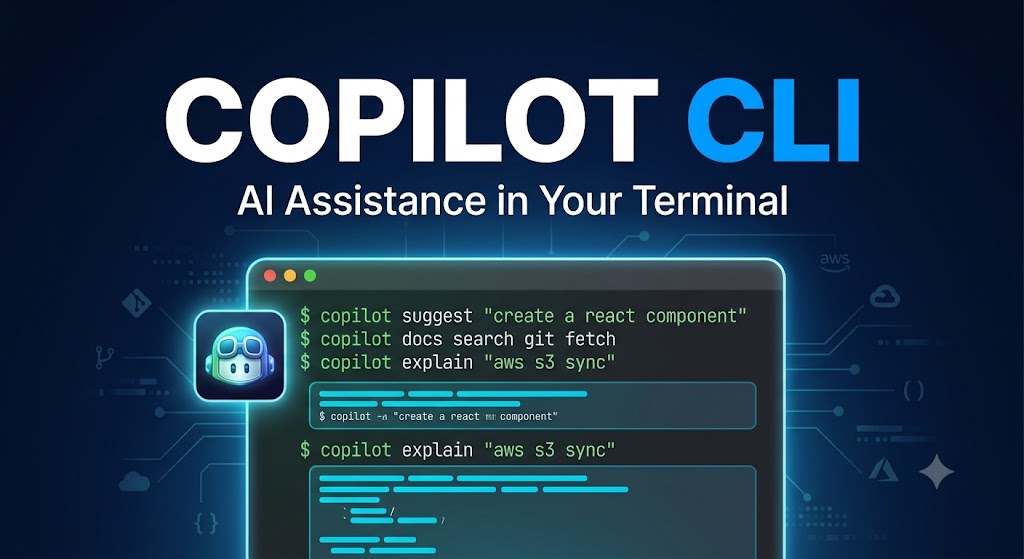
Artificial Intelligence has rapidly transformed software development, and the command line is no exception. Developers no longer need to switch between documentation, search engines, and AI chat interfaces to solve programming problems. Modern AI-powered command-line tools allow users to stay within their terminal while generating commands, explaining scripts, debugging issues, and automating repetitive tasks.
Table of Contents
Copilot CLI brings AI assistance directly into the terminal experience, making development workflows faster and more productive. Instead of manually searching for shell commands or writing complex scripts from scratch, developers can simply describe what they want in natural language and receive intelligent suggestions.
Whether you’re a backend developer, DevOps engineer, system administrator, or cloud engineer, Copilot CLI can significantly reduce the time spent on repetitive command-line operations.
What is Copilot CLI?
Copilot CLI is an AI-powered command-line assistant that integrates AI capabilities directly into your terminal environment. It helps developers:
- Generate shell commands
- Explain existing commands
- Understand errors
- Create scripts
- Automate workflows
- Learn Linux and terminal commands
- Generate Git commands
- Assist with Docker and Kubernetes operations
- Work with cloud infrastructure
- Improve developer productivity
Instead of remembering hundreds of commands and flags, developers can simply ask:
“Find all log files modified in the last 24 hours”
and receive the appropriate shell command.
It effectively acts as an intelligent assistant that understands natural language and converts it into executable terminal operations.
Why Developers Use Copilot CLI
Traditional command-line development often involves:
- Searching Stack Overflow
- Reading documentation
- Looking up Linux commands
- Checking Git syntax
- Remembering Docker flags
- Debugging shell scripts
Copilot CLI reduces this friction by providing AI-generated assistance directly in the terminal.
Common productivity improvements include:
- Faster command generation
- Better understanding of unfamiliar commands
- Reduced context switching
- Easier scripting
- Improved DevOps workflows
- Learning while working
Key Features
1. Natural Language to Shell Commands
Instead of remembering syntax:
Show files larger than 500MB
AI may generate:
find . -type f -size +500M
2. Command Explanation
Complex commands can be explained in plain English.
Example:
find . -type f -mtime -7
Explanation:
findsearches files.means current directory-type fsearches regular files-mtime -7finds files modified within 7 days
This makes learning much easier.
3. Git Assistance
Generate Git commands naturally.
Examples:
Create a new branch named feature/auth
Produces:
git checkout -b feature/auth
Another example:
Undo last commit but keep changes
May generate:
git reset --soft HEAD~1
4. Docker Assistance
Generate Docker commands quickly.
Prompt:
Run nginx on port 8080
Output:
docker run -d -p 8080:80 nginx
It can also help with:
- Docker Compose
- Images
- Volumes
- Networks
- Containers
5. Kubernetes Support
Examples:
List all pods
kubectl get pods
Describe deployment api-server
kubectl describe deployment api-server
Useful for DevOps engineers working with Kubernetes clusters.
6. Script Generation
Developers can ask:
Create a bash script that backs up a folder every day
The AI can generate a complete shell script with comments.
7. Error Explanation
Instead of searching Google:
Permission denied
Copilot CLI can explain:
- Why the error occurred
- Possible causes
- Suggested fixes
- Security implications
8. Linux Learning Tool
Beginners can learn terminal commands interactively.
Example:
How do I recursively search for "hello"?
Generated:
grep -r "hello" .
with explanation.
Common Use Cases
Software Development
- Git commands
- Build scripts
- Testing
- Project setup
- Package management
DevOps
- Docker
- Kubernetes
- CI/CD
- Infrastructure
- Deployment
Cloud Engineering
Useful with:
- AWS
- Azure
- Google Cloud
- Terraform
- SSH
- Networking
System Administration
Generate commands for:
- File management
- Permissions
- Users
- Services
- Processes
- Monitoring
Learning Linux
Students can ask questions in natural language and receive explanations instead of memorizing syntax.
Typical Workflow
Developer
      │
      ▼

Natural Language Prompt

      │
      ▼

Copilot CLI

      │
      ▼

AI Processing

      │
      ▼

Generated Command

      │
      ▼

Developer Reviews

      │
      ▼

Execute in Terminal
Human review remains an important safety step before executing generated commands.
Benefits
Faster Development
Developers spend less time searching documentation.
Better Productivity
Reduced context switching improves focus.
Easier Learning
Beginners understand commands instead of copying blindly.
Reduced Human Error
AI can suggest correct syntax for complex operations.
Better DevOps Experience
Infrastructure management becomes easier through natural language.
Script Automation
Generate shell scripts rapidly.
Knowledge Discovery
Understand unfamiliar commands with explanations.
Practical Examples
Example 1: Find Large Files
Prompt:
Find files over 1GB
Generated:
find / -type f -size +1G
Example 2: Git Status
Prompt:
Show current Git status
Generated:
git status
Example 3: Kill Process
Prompt:
Kill process 1234
Generated:
kill 1234
Example 4: Compress Folder
Prompt:
Compress uploads directory
Generated:
tar -czf uploads.tar.gz uploads/
Example 5: Count Lines
Prompt:
Count lines in all PHP files
Possible output:
find . -name "*.php" -exec wc -l {} +
Best Practices
Always Review Commands
Never blindly execute AI-generated commands.
Especially review commands involving:
- rm
- sudo
- chmod
- chown
- dd
- mkfs
- production servers
Test First
Run commands in:
- local development
- virtual machines
- containers
- staging environments
before production.
Verify Scripts
Generated scripts should be reviewed for:
- security
- correctness
- performance
- portability
Understand Before Running
AI is an assistant—not a replacement for understanding critical operations.
Advantages
- AI inside terminal
- Natural language interface
- Faster development
- Better Git workflow
- Linux learning support
- Script generation
- Command explanations
- DevOps friendly
- Cloud friendly
- Productivity improvement
Limitations
- AI suggestions can be incorrect
- Requires human verification
- Potentially dangerous commands should be reviewed carefully
- Context may sometimes be incomplete
- Generated scripts may need optimization
- Security-sensitive operations require manual validation
Common Copilot CLI Commands (400+ words)
Create a table.
| Command | Description |
|---|---|
| gh copilot explain | Explain command |
| gh copilot suggest | Suggest shell command |
| gh auth login | Login |
| gh auth status | Status |
| gh help | Help |
| gh version | Version |
Expand every command.
Best Use Cases in 2026
Copilot CLI is particularly valuable for:
- Backend developers
- PHP developers
- Node.js developers
- Python developers
- DevOps engineers
- Cloud engineers
- Linux administrators
- Kubernetes operators
- Docker users
- Students learning command-line tools
Future Outlook
AI-assisted terminals are becoming a standard part of modern development workflows. Rather than replacing developers, tools like Copilot CLI reduce repetitive work, speed up troubleshooting, and make complex command-line environments more approachable.
As AI models improve, terminal assistants are expected to become more context-aware, integrate more deeply with development environments, and provide increasingly accurate automation while still relying on human oversight for critical decisions.
References
Conclusion
Copilot CLI represents a significant evolution in developer tooling by bringing AI directly into the command-line experience. It simplifies command generation, explains unfamiliar syntax, assists with scripting, and supports common workflows across Git, Docker, Kubernetes, and cloud platforms.
Used thoughtfully and with proper review, it can improve productivity and reduce the friction of day-to-day development while helping both experienced engineers and newcomers work more effectively.