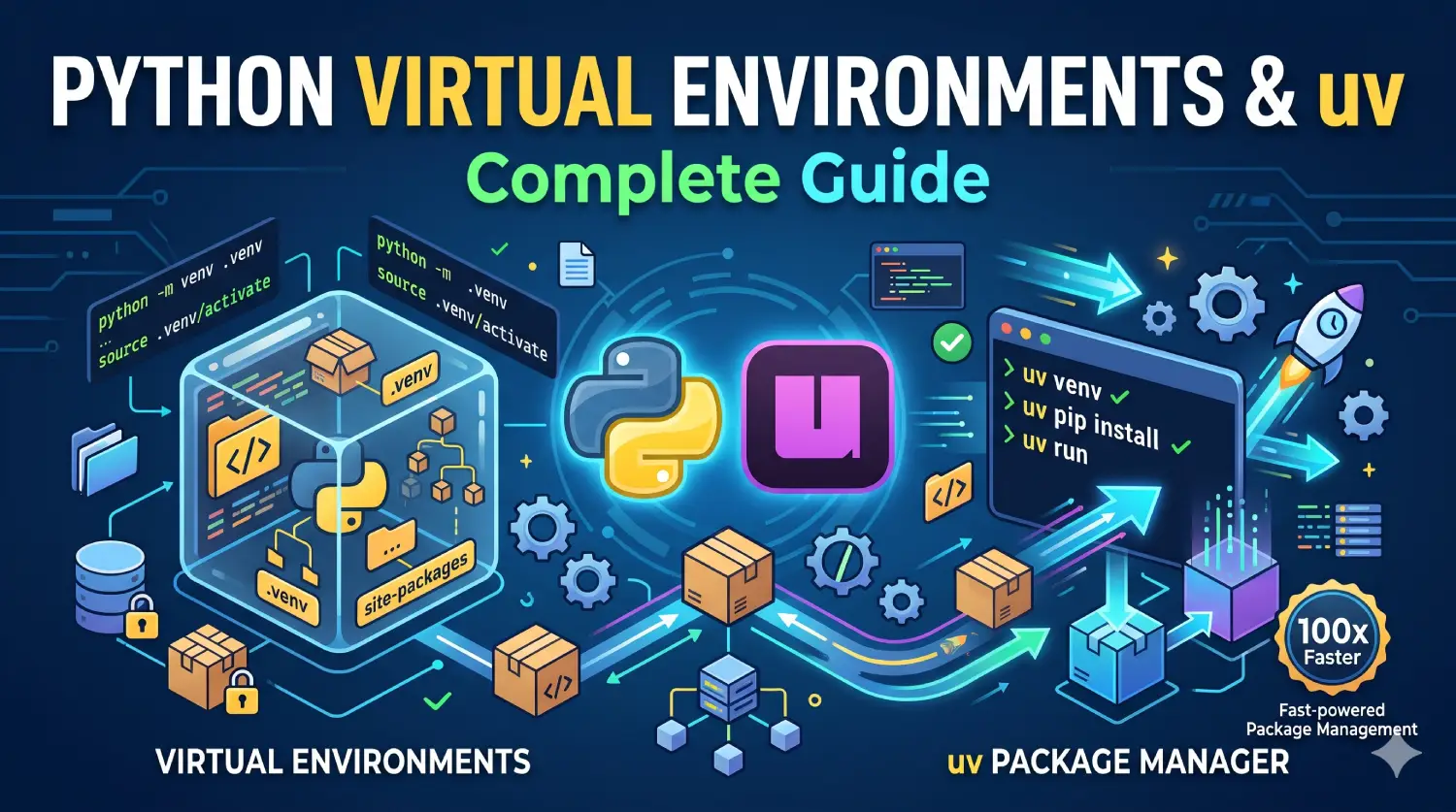
Learn Python virtual environments and uv. Explore dependency management, pyproject.toml, lock files, and modern Python project setup.
Table of Contents
Python is widely used for web development, automation, data processing, machine learning, and artificial intelligence. However, as Python projects grow, managing packages, Python versions, and dependencies can become challenging.
Imagine building three applications: a command-line utility, a FastAPI backend, and an AI application that uses machine learning libraries. Each project may require different package versions. Installing everything into one global Python environment can lead to dependency conflicts and make applications difficult to maintain.
Python provides virtual environments to isolate project dependencies. The traditional combination of venv and Python pip remains useful, while modern tools such as Python uv provide a more integrated approach to Python project setup and dependency management.
In this guide, you will learn how to create Python virtual environments, install Python packages, manage dependencies, understand lock files, and build a reproducible Python project using uv.
1. What Is Python Dependency Management?
A dependency is an external package or library that your application needs to perform a particular task. Instead of implementing every feature from scratch, developers use packages maintained by other developers and organizations.
For example, a Python application might use the following packages:
- requests to make HTTP requests.
- fastapi to create REST APIs.
- sqlalchemy to interact with relational databases.
- pydantic to validate data.
- pytest to run automated tests.
Consider this Python script:
import requests

response = requests.get(
    "https://api.github.com",
    timeout=10
)

print(response.status_code)
The script uses the third-party requests package. If that package is not installed in the Python environment running the script, Python raises a ModuleNotFoundError.
You can install the package using Python pip:
python -m pip install requestsHowever, installing a package is only one part of dependency management. You also need to know which version is installed, which other packages it requires, and how to reproduce the same environment on another computer.
Why Is Dependency Management Important?
Suppose Application A requires version 1 of a library, while Application B requires version 2. Installing both applications into the same global environment can create dependency conflicts. Upgrading the library for one project might break the other.
Dependency management helps you:
- Isolate packages for individual projects.
- Specify compatible package versions.
- Track direct and transitive dependencies.
- Reproduce environments across development and deployment.
- Separate production dependencies from development tools.
- Reduce unexpected failures caused by package upgrades.
For small scripts, a Python virtual environment and Python pip may be sufficient. For larger applications, a project manager such as Python uv can simplify several of these tasks.
2. What Is a Python Virtual Environment?
A Python virtual environment is an isolated environment associated with a particular Python interpreter and its installed packages. It lets each project maintain its own dependencies without unnecessarily changing the packages used by other projects.
For example, your computer might contain the following projects:
| Project | Example Dependencies |
|---|---|
| CLI utility | requests |
| FastAPI backend | fastapi, uvicorn, pydantic |
| AI application | fastapi, pydantic, AI libraries |
Each project can have its own Python virtual environment and dependency versions.
Benefits of Python Virtual Environments
Isolation: Packages installed in one environment generally do not affect other project environments.
Reproducibility: A project can declare its dependencies so another developer can recreate a similar environment.
Cleaner development: You avoid filling the system Python installation with packages required by individual applications.
Safer experimentation: You can test package upgrades and new libraries without directly modifying unrelated projects.
A Python virtual environment does not automatically guarantee identical behavior on every operating system. Python versions, operating-system libraries, environment variables, and other external requirements can still differ.
Official reference: Python Packaging User Guide: Installing Packages Using pip and Virtual Environments.
3. Understanding venv in Python
Python venv is a module included in Python’s standard library. It creates lightweight Python virtual environments for individual projects. You do not normally need to install venv separately when using a standard Python installation that includes it.
Step 1: Create a Project Directory
Open your terminal or Windows PowerShell and create a folder:
mkdir python-setup-demo
cd python-setup-demo
Step 2: Create a Python Virtual Environment
On Windows, run:
py -m venv .venvOn macOS or Linux, run:
python3 -m venv .venvThe .venv argument specifies the directory where Python will create the environment.
Your project will contain a directory similar to this:
python-setup-demo/
└── .venv/
    ├── Include/
    ├── Lib/
    ├── Scripts/
    └── pyvenv.cfg
The exact directory structure varies by operating system. Windows commonly uses Scripts, while macOS and Linux use bin.
Step 3: Activate the Python Virtual Environment
Creating a Python virtual environment does not necessarily activate it in your current terminal. Activation adjusts your shell environment so commands such as python and pip normally refer to the Python virtual environment.
Windows PowerShell:
.venv\Scripts\Activate.ps1Windows Command Prompt:
.venv\Scripts\activate.batmacOS or Linux:
source .venv/bin/activateAfter activation, your terminal prompt may display (.venv).
Step 4: Install a Package
With the Python virtual environment activated, run:
python -m pip install requestsThe package will normally be installed inside the Python virtual environment instead of the global Python environment.
Check the installation:
python -m pip show requests
python -m pip list
Step 5: Deactivate the Environment
When you finish working, run:
deactivateThis returns the terminal to its previous environment. You do not need to deactivate a Python virtual environment before closing the terminal, but doing so is useful when switching between projects in the same session.
Can You Use a Python Virtual Environment Without Activation?
Yes. Activation is convenient, but it is not mandatory.
On Windows:
.\.venv\Scripts\python.exe --versionOn macOS or Linux:
./.venv/bin/python --versionThis is helpful in automated scripts, scheduled jobs, and development tools that need to select a specific interpreter explicitly.
Official reference: Python venv Documentation.
4. Understanding pip
pip is Python’s standard, widely used package installer. It downloads and installs packages from package indexes such as the Python Package Index (PyPI), subject to the configured package sources and installation options.
Common pip Commands
| Command | Purpose |
|---|---|
| python -m pip install requests | Install a package. |
| python -m pip install “requests>=2.31” | Install a compatible version. |
| python -m pip install requests==2.32.5 | Request a specific version. |
| python -m pip uninstall requests | Uninstall a package. |
| python -m pip list | List installed packages. |
| python -m pip show requests | Display package information. |
| python -m pip freeze | Print installed package versions. |
| python -m pip check | Check installed dependencies for incompatibilities. |
The package version in an example is illustrative. Choose an appropriate, currently supported version for your project.
Why Use python -m pip Instead of pip?
Consider a computer with multiple Python installations. The pip executable found on your command path might belong to a different Python interpreter than the one running your script.
Using the following command asks the selected Python interpreter to run its associated pip module:
python -m pip install requestsThis makes the intended environment clearer and helps prevent accidental package installation into the wrong interpreter.
What Is requirements.txt?
A requirements.txt file records package requirements in a format that pip understands. For example:
requests>=2.31,<3.0
fastapi>=0.115,<1.0
These are version constraints, not necessarily exact installed versions.
To install the listed requirements:
python -m pip install -r requirements.txtTo generate a snapshot of installed packages:
python -m pip freeze > requirements.txtYou can later install those recorded versions using the same -r command.
However, pip freeze reports installed distributions. It does not distinguish your application’s direct dependencies from all the transitive packages installed to support them. Nor does it provide all the cross-platform resolution features of a dedicated project lock file.
For small projects, requirements.txt remains useful. For larger applications, consider a workflow that separates dependency declarations from a fully resolved lock file.
Official reference: Official pip Documentation.
5. What Is uv in Python?
uv is a fast Python package and project manager developed by Astral. It is written in Rust and combines several workflows that developers traditionally handle using separate tools.
Depending on how you use it, uv can manage Python versions, create Python virtual environments, install packages, resolve dependencies, execute scripts, and maintain project lock files.
Why Is Python uv Useful?
With a traditional workflow, you might use:
- Python venv to create an environment.
- Python pip to install packages.
- requirements.txt to record dependencies.
- Additional tools to resolve and lock dependencies.
- Separate commands to select or install Python versions.
With uv, you can manage many of these tasks through one command-line interface.
For example:
uv init my-python-app
cd my-python-app
uv add requests
uv run python main.py
These commands initialize a project, add a dependency, and run Python code in the project’s managed environment.
Key Features of uv
- Fast package installation: Uses caching and optimized package operations.
- Python Virtual environment management: Creates and manages project environments.
- Dependency resolution: Determines compatible package versions.
- Lock files: Records resolved dependencies in
uv.lock. - Python version management: Can download and select Python versions.
- Script execution: Runs scripts in an appropriate environment.
- Development dependencies: Separates development tools from runtime dependencies.
- Project metadata: Uses the standard
pyproject.tomlformat. - Compatibility workflows: Provides a
uv pipinterface for many familiar package installation operations.
These capabilities make uv particularly useful when starting FastAPI services, automation tools, Python libraries, and AI applications.
Official references: uv Documentation and uv Project Guide.
uv vs. venv vs. pip
| Tool | Main Responsibility |
|---|---|
| venv | Creates Python virtual environments. |
| pip | Installs Python packages. |
| uv | Combines Python virtual environment, package, project, and dependency-management workflows. |
You can continue using venv and pip without adopting uv. You can also use uv just for package installation in an existing workflow rather than immediately switching your whole project to uv projects.
For a new application, however, the integrated project workflow is often the simplest starting point.
6. Installing Python and uv
Before building a project, ensure that you have access to a suitable Python installation.
Step 1: Check Python
On Windows:
py --version
python --version
On macOS or Linux:
python3 --versionIf Python is missing, install an appropriate supported release from the official Python downloads page.
Step 2: Install uv
Choose the installation method suitable for your operating system.
Windows PowerShell:
powershell -ExecutionPolicy ByPass -c "irm https://astral.sh/uv/install.ps1 | iex"macOS or Linux:
curl -LsSf https://astral.sh/uv/install.sh | shUsing an existing Python installation:
python -m pip install uvThe official standalone installers are useful when you want to use uv independently of a particular Python virtual environment. If you install it through pip, remember that the executable is associated with the Python virtual environment where it was installed.
See the official uv installation guide.
Step 3: Verify the Installation
uv --version
uv help
If your terminal cannot find uv, reopen the terminal and check that the installation directory is on your PATH.
Step 4: Install a Python Version Through uv
If you need a particular Python version and want uv to manage it, you can use commands such as:
uv python list
uv python install 3.13
Check the versions supported by your application before choosing one. Python version availability depends on the current uv release and platform.
Installing a Python version with uv does not mean every project automatically switches to it. Your project can specify its required Python version, and uv can use that requirement when resolving the Python virtual environment.
7. Creating a Python Project with uv
Let’s create a small project that you can use as the foundation for future Python uv tutorials and portfolio applications.
Step 1: Initialize a Project
uv init python-setup-demo
cd python-setup-demo
Alternatively, create a folder yourself, navigate into it, and run uv init without specifying a directory name.
The generated files vary depending on the project type and options. A typical application project may look like this:
python-setup-demo/
├── .git/
├── .gitignore
├── .python-version
├── pyproject.toml
├── README.md
└── main.py
Some project types use a src/ layout instead of a root-level main.py. Both layouts are valid; choose one based on the kind of project you are building.
Step 2: Understand the Project Files
- .python-version records a Python version selection for uv.
- pyproject.toml declares project metadata and dependencies.
- README.md describes the project.
- .gitignore specifies files that Git should not track.
- main.py may contain the entry point for a simple script-based project.
When you first run a project command such as uv run, uv sync, or uv lock, uv can create the project’s .venv and uv.lock as needed.
Step 3: Run the Application
uv run python main.pyIf the generated project has a different entry point, use its filename instead.
The uv run command prepares the project’s environment and runs the requested command in that environment. It can create the environment and resolve dependencies automatically when necessary.
Step 4: Inspect the Directory
After running the project, your structure may look like this:
python-setup-demo/
├── .venv/
├── .gitignore
├── .python-version
├── main.py
├── pyproject.toml
├── README.md
└── uv.lock
The .venv directory contains the environment, while uv.lock records the resolved dependency information. Both are important, but they serve different purposes.
Important: Do not commit the .venv directory to Git. It is environment-specific and should be recreated from your project configuration. Commit the relevant project configuration and lock file instead.
Official reference: Working on Projects with uv.
8. Managing Dependencies with uv
Dependency management is one of the most useful features of uv. Instead of manually installing packages and separately maintaining dependency lists, you can declare dependencies in your project and let uv resolve and synchronize the environment.
Adding a Dependency
Let’s add the requests package:
uv add requestsThis command typically:
- Adds the dependency to
pyproject.toml. - Resolves compatible package versions.
- Updates
uv.lock. - Synchronizes the project environment.
This makes the package available to your project without requiring you to run pip install requests separately.
Adding a Version Constraint
uv add "requests>=2.31,<3.0"The command requests a version satisfying the specified constraint. The resolved version is recorded in the lock file.
| Requirement | Meaning |
|---|---|
| requests | Accept a compatible version selected by the resolver. |
| requests>=2.31 | Accept version 2.31 or newer, subject to other constraints. |
| requests<3.0 | Require a version below 3.0. |
| requests>=2.31,<3.0 | Require a version in the specified range. |
| requests==2.32.5 | Request exactly version 2.32.5. |
Version constraints help communicate compatibility requirements. They are not a replacement for testing your application against dependency upgrades.
Removing a Dependency
If you no longer need a package, use:
uv remove requestsThis updates the project’s dependency declaration, lock file, and environment as appropriate.
Viewing Installed Packages
To inspect the Python virtual environment managed by your project, run:
uv pip list
uv pip show requests
These commands use uv‘s pip-compatible interface. For a project managed with uv, prefer uv add and uv remove when changing declared dependencies rather than relying on direct environment changes.
Updating Dependencies
To update the lock file according to the current dependency declarations:
uv lock --upgradeTo synchronize the environment after updating the lock file:
uv syncThe upgrade operation can select newer versions allowed by the declared constraints. Review the changes and run your tests before deploying.
You can also target an individual package for an upgrade:
uv lock --upgrade-package requests
uv sync
This is useful when you need a security fix or a newer feature without intentionally upgrading every dependency.
Adding Development Dependencies
Many packages are useful during development but are not required to run your application in production. Examples include:
pytestfor testing.rufffor linting and formatting.mypyfor static type checking.
Add development dependencies with:
uv add --dev pytest ruffThis keeps your runtime dependencies separate from your development tools.
Official reference: Managing Dependencies in uv Projects.
9. Understanding pyproject.toml
The pyproject.toml file is a standardized configuration file used by Python packaging and development tools. It can contain project metadata, dependencies, build configuration, and tool-specific settings.
In a uv-managed project, it is the main place to declare your project’s dependencies and Python compatibility requirements.
Consider this simplified example:
[project]
name = "python-setup-demo"
version = "0.1.0"
description = "A Python project setup demonstration"
readme = "README.md"
requires-python = ">=3.12"
dependencies = [
    "requests>=2.31,<3.0",
]

[dependency-groups]
dev = [
    "pytest",
    "ruff",
]
This example declares Python 3.12 or newer as the supported range, subject to the compatibility of the packages and your code. Choose the minimum version that your application actually supports.
Understanding the Main Sections
[project]
Contains project metadata such as the project name, version, description, and supported Python version.
requires-python
Declares the Python versions supported by the project. This influences which package versions can be selected during dependency resolution.
dependencies
Lists the application’s direct runtime dependencies.
[dependency-groups]
Defines groups of dependencies used for tasks such as development and testing. These groups are intended for project workflows and are not the same as published runtime dependencies.
Why Use pyproject.toml Instead of Only requirements.txt?
| Feature | requirements.txt | pyproject.toml |
|---|---|---|
| List package requirements | Yes | Yes |
| Standard project metadata | Not its main purpose | Yes |
| Declare supported Python versions | No standard project metadata field | Yes |
| Separate development dependency groups | Usually requires additional files or conventions | Supported by modern project workflows |
| Build configuration | Not its purpose | Supported |
| Record exact resolved dependencies | Can record pinned versions | Use a lock file when appropriate |
You do not have to delete requirements.txt from an existing project when adopting uv. Legacy applications can continue using requirements files, and uv offers commands for working with them. For a new uv project, however, pyproject.toml and uv.lock provide a clear separation between dependency declarations and resolved versions.
Official reference: Project Structure and Configuration in uv.
10. Understanding Lock Files and uv.lock
A lock file records the resolved dependency versions selected for a project. It helps developers recreate a consistent environment instead of independently resolving potentially different package versions every time they install dependencies.
What Problem Does a Lock File Solve?
Suppose your project declares:
[project]
dependencies = [
    "requests>=2.31,<3.0",
]
This allows a range of versions. If a developer installs the project at one point in time and another developer installs it several months later, the resolver might select different compatible versions.
A lock file records the versions selected during resolution, along with other information needed to reproduce the dependency solution.
What Is uv.lock?
uv.lock is the lock file used by uv project workflows. It records resolved dependencies and supports multiple platforms and Python versions through conditional dependency information.
For example, a project may depend on a package that is available only on certain operating systems or requires different dependencies for different Python versions. A universal lock file can represent these variations.
The lock file is managed by uv and should not normally be edited manually.
How to Generate a Lock File
Run:
uv lockThis resolves the dependencies declared in the project and creates or updates uv.lock.
To synchronize the environment with the lock file:
uv syncThe distinction matters:
uv lockresolves and records dependency versions.uv syncinstalls the project dependencies into the environment so that it matches the selected project configuration and lock file.
For stricter checks in automation, use:
uv sync --lockedThis asks uv to fail rather than silently update a lock file that is out of date with the project configuration.
Should You Commit uv.lock to Git?
Yes, for applications and other projects where reproducible environments matter.
A typical Git repository should include:
python-setup-demo/
├── .gitignore
├── .python-version
├── main.py
├── pyproject.toml
├── README.md
└── uv.lock
The Python virtual environment should remain untracked.
Committing the lock file helps because:
- Teammates can install the same resolved dependencies.
- CI systems can validate the committed dependency solution.
- Deployment environments can use a known dependency state.
- Dependency upgrades become visible in code reviews.
- Unexpected changes in transitive dependencies are easier to investigate.
For reusable libraries, the situation can differ: library consumers often resolve dependencies within their own applications, so the library’s published compatibility constraints remain especially important.
requirements.txt vs. uv.lock
| Feature | requirements.txt | uv.lock |
|---|---|---|
| Common use | Installing packages with pip | Reproducing a uv project dependency solution |
| Format | Requirements-file syntax | TOML-based lock file |
| Direct dependencies | Can be listed | Represented in the resolved project solution |
| Transitive dependency versions | Depends on file contents | Recorded in the lock file |
| Multiple dependency groups | Often handled through conventions or multiple files | Supported in the project model |
| Cross-platform resolution | Depends on how requirements are generated | Supports universal resolution with platform conditions |
| Primary maintenance | Often maintained manually or generated | Managed by uv |
A pinned requirements.txt can be useful for reproducible installations, but its reliability depends on how it was generated and what information it includes. The two formats are not interchangeable in every workflow.
Official reference: uv Project Layout and Lock Files.
11. Running Python Scripts and Applications with uv
One of the most convenient features of uv is that you can execute commands in the project environment without manually activating a Python virtual environment.
Run a Python Script
uv run python main.pyFor a project that uses FastAPI, add the dependencies:
uv add fastapi uvicornThen create main.py:
from fastapi import FastAPI

app = FastAPI()


@app.get("/")
def home():
    return {"message": "Hello from FastAPI"}
Run the development server:
uv run uvicorn main:app --reloadOpen http://127.0.0.1:8000 in your browser to test the application.
This example demonstrates how the same project workflow can support a web API rather than just a basic script.
What Happens When You Run uv run?
In a managed project, uv run checks the project configuration and lock file, synchronizes the environment when necessary, and then executes the requested command.
This reduces the risk of running a command with dependencies that are missing from the project’s declared environment.
You can also explicitly prepare the environment for an editor or another tool:
uv syncYour IDE can then be configured to use the interpreter inside .venv.
Official reference: Running Commands and Working on Projects with uv.
12. Development Dependencies and Testing
A well-organized Python project distinguishes packages needed to run the application from packages needed to develop, test, and maintain it.
| Dependency Type | Examples | Purpose |
|---|---|---|
| Runtime | FastAPI, SQLAlchemy | Run the application. |
| Testing | pytest, HTTPX | Test functionality and APIs. |
| Code quality | Ruff, mypy | Check code quality and types. |
Add runtime dependencies with:
uv add fastapi sqlalchemyAdd development dependencies with:
uv add --dev pytest ruffCreate a Simple Automated Test
Suppose your project has a file named calculator.py:
def add(a: int, b: int) -> int:
    return a + b
Create a file named test_calculator.py:
from calculator import add


def test_add():
    assert add(2, 3) == 5


def test_add_negative_numbers():
    assert add(-2, -3) == -5
Run the tests:
uv run pytestYou should see pytest report two passing tests if the files are located correctly and the code runs as expected.
You can also check your code with Ruff:
uv run ruff check .These commands illustrate a useful workflow: dependencies are declared in the project, tools are installed into the managed environment, and development commands run through uv.
13. Managing Python Versions with uv
Package management and Python version management are related, but they are not the same thing. A project may require a particular Python release because of language features, library compatibility, or deployment requirements.
For example, the pyproject.toml file might specify:
[project]
name = "python-setup-demo"
version = "0.1.0"
requires-python = ">=3.12"
dependencies = []
This declares that the project supports Python 3.12 and later, subject to the compatibility of its code and dependencies. It does not pin the project to exactly Python 3.12.
To inspect available Python installations:
uv python listTo install a specific Python version:
uv python install 3.12To select a Python version for the project, use:
uv python pin 3.12This can create or update a .python-version file.
The pinned version influences the Python interpreter uv selects for the project. The exact behavior also depends on the project’s Python requirements and available installations.
Why Does Python Version Management Matter?
Imagine that you develop an application using Python 3.13, but your deployment platform uses Python 3.12. Your code or dependencies might behave differently between those environments.
A clear Python version policy helps you:
- Avoid accidentally developing against an unsupported version.
- Align local development with CI and deployment.
- Test compatibility with supported Python releases.
- Document the minimum version your application needs.
For professional applications, specify the supported Python range, select a suitable development version, and test against the versions you claim to support.
14. Using venv and pip Without uv
Although Python uv offers an integrated workflow, it is still important to understand the traditional approach. Many existing projects use venv, pip, and requirements.txt, and these tools remain fully useful.
Step 1: Create a Project
mkdir traditional-python-app
cd traditional-python-app
Step 2: Create and Activate the Environment
On Windows:
py -m venv .venv
.venv\Scripts\Activate.ps1
On macOS or Linux:
python3 -m venv .venv
source .venv/bin/activate
Step 3: Install Dependencies
python -m pip install requestsStep 4: Create a Script
Create main.py:
import requests


def main():
    response = requests.get(
        "https://api.github.com",
        timeout=10,
    )

    response.raise_for_status()
    print(f"HTTP status: {response.status_code}")


if __name__ == "__main__":
    main()
Step 5: Run the Script
python main.pyThis script requires a working internet connection and access to the requested API.
Step 6: Record Installed Dependencies
python -m pip freeze > requirements.txtA teammate can recreate an environment by creating a new Python virtual environment and running:
python -m pip install -r requirements.txtFor a more controlled production workflow, generate and maintain dependency requirements deliberately rather than assuming that every package listed by pip freeze is a direct application dependency.
Can uv Work with an Existing requirements.txt?
Yes. You can create an environment and install packages through the uv pip interface:
uv venv
uv pip install -r requirements.txt
You can also use uv to help migrate an existing project to a pyproject.toml-based workflow. The official migration guide documents importing dependencies with commands such as uv add -r requirements.in.
This means you do not need to rewrite every existing project immediately. You can adopt uv gradually.
Official reference: Migrating from pip to uv Projects.
15. Common Errors and Troubleshooting
Even a well-designed Python environment can encounter configuration problems. The following are common issues and practical solutions.
Error 1: ModuleNotFoundError
Example:
ModuleNotFoundError: No module named 'requests'Cause: The package is missing from the Python environment running your script, or your script is using a different interpreter.
Solution with uv:
uv add requests
uv run python main.py
Solution with venv and pip: Activate the correct environment and install the package:
python -m pip install requestsCheck which interpreter is running:
python -c "import sys; print(sys.executable)"Error 2: uv Is Not Recognized
Example on Windows:
uv : The term 'uv' is not recognized as the name of a cmdletCause: The executable is not available on the current PATH, or the terminal was opened before installation completed.
Solution:
- Reopen your terminal.
- Run
uv --version. - Verify that the installation completed successfully.
- Check the installer output and confirm that the executable directory is available on
PATH.
If you installed uv through a Python virtual environment, make sure its executable directory is accessible.
Error 3: PowerShell Cannot Activate .venv
PowerShell may block the activation script because of its execution policy.
You can avoid activation entirely by running the environment’s Python executable directly, or use:
uv run python main.pyIf you prefer manual activation, consult the official Python virtual environment documentation and your organization’s security policies before changing PowerShell execution settings.
Error 4: Dependency Resolution Fails
Example:
No solution found when resolving dependenciesThis can happen when two packages require incompatible versions of another package, or when a package does not support your Python version.
Troubleshooting steps:
- Check the
requires-pythonsetting inpyproject.toml. - Review the version constraints of your direct dependencies.
- Check the package’s supported Python versions.
- Try compatible dependency versions.
- Re-run the resolver and test the resulting application.
Do not fix a genuine incompatibility simply by removing version constraints without understanding the impact.
Error 5: The Lock File Is Out of Date
If you change pyproject.toml manually, uv.lock may no longer match it.
Run:
uv lock
uv sync
For CI or another environment where the committed lock file must remain unchanged, use:
uv sync --lockedThis is useful for detecting a missing lock-file update before deployment.
Error 6: Packages Were Installed into the Wrong Python Environment
This is a common issue when multiple Python versions or Python virtual environments exist on the same computer.
Check the interpreter:
python -c "import sys; print(sys.executable)"Check the pip associated with that interpreter:
python -m pip --versionIf you use uv projects, prefer:
uv run python -c "import sys; print(sys.executable)"This helps verify which interpreter is being used by the project’s command workflow.
Error 7: Should .venv Be Uploaded to GitHub?
No. A Python virtual environment contains local installation files that may be platform-specific and are normally recreated on another computer.
Add the following to .gitignore:
.venv/
__pycache__/
*.py[cod]
.env
The .env entry is relevant when your project uses local environment-variable files that may contain secrets. Never commit API keys, passwords, tokens, or production credentials.
Commit your source code, project configuration, and appropriate lock file instead.
16. Best Practices for Modern Python Project Setup
A good Python project setup should be easy to understand, repeatable, and straightforward for another developer to reproduce.
1. Use a Separate Environment for Each Project
Avoid installing every application’s dependencies into the same global environment. For a new project, .venv is a common, recognizable directory name.
2. Declare Dependencies Explicitly
If your application directly imports a package, make sure it is declared as a project dependency.
uv add requestsDo not rely on a package that happens to be installed indirectly by another dependency.
3. Commit the Lock File for Applications
Keep uv.lock in version control when you want a reproducible application environment. Review lock-file changes alongside dependency upgrades.
4. Keep Environments Out of Version Control
Use .gitignore for .venv and generated Python bytecode files. Environments should generally be recreated on each machine.
5. Specify Python Compatibility
Use requires-python in pyproject.toml to communicate the supported Python range. Select versions based on actual application and deployment requirements.
6. Separate Runtime and Development Dependencies
Use runtime dependencies for packages required by the application and development groups for testing, linting, and other development tasks.
7. Test After Upgrades
Dependency resolution can succeed while an application’s behavior still changes. Run automated tests and relevant integration checks before deploying upgrades.
8. Use Locked Synchronization in CI
A CI pipeline should be able to detect when the project’s lock file is inconsistent with the dependency declarations.
uv sync --locked
uv run pytest
This workflow synchronizes the environment without silently updating an out-of-date lock file, then executes the tests.
9. Avoid Manually Editing Generated Lock Files
Use uv add, uv remove, and uv lock to make dependency changes. This reduces the risk of invalid or inconsistent lock-file data.
10. Use One Documented Workflow per Project
For a new project managed by uv, a concise workflow is:
uv sync
uv run python main.py
uv run pytest
For an existing pip-based project, document how to create the environment and install the requirements. Consistency is more important than switching tools solely because they are newer.
11. Keep Secrets Outside Source Code
Store API keys and other credentials in environment variables or an appropriate secrets manager. Do not put secrets in pyproject.toml, uv.lock, or public repositories.
12. Learn the Fundamentals Even When Using Modern Tools
Understanding venv, Python pip, dependency constraints, and Python virtual environments helps you troubleshoot existing projects. Learning Python uv then adds an integrated workflow without hiding the underlying concepts.
Official references: Python Packaging User Guide and uv Documentation.
17. Frequently Asked Questions
1. What Is the Difference Between venv and uv in Python?
venv is Python’s built-in module for creating Python virtual environments. uv is a broader package and project manager that can create environments, install packages, manage Python versions, resolve dependencies, and maintain lock files. You can use venv independently or use uv for a more integrated workflow.
2. Is uv Better Than pip?
For many new Python projects, uv is convenient because it combines package installation with project management and lock-file support. It also emphasizes performance and caching. However, pip remains a standard and widely used package installer. The right choice depends on your project’s requirements and existing workflow.
3. Is uv a Replacement for venv?
For typical project workflows, uv can create and manage Python virtual environments automatically, so you often do not need to run python -m venv yourself. However, venv remains available as a standard-library option, and you can use uv venv when you want to create an environment explicitly.
4. What Is the Difference Between requirements.txt and pyproject.toml?
requirements.txt is commonly used to specify packages for installation with pip. pyproject.toml is a standardized project configuration file that can describe project metadata, Python compatibility, dependencies, and build settings. In a uv project, pyproject.toml declares the requirements, while uv.lock records the resolved dependency solution.
5. What Is the Purpose of uv.lock?
uv.lock records the resolved dependency versions and relevant information needed to reproduce a project’s dependency solution. It helps developers and CI systems work with consistent dependency versions. It should generally be committed to version control for applications and maintained using uv rather than edited manually.
6. Should I Commit .venv to GitHub?
No. A .venv directory contains an installed environment that is usually specific to the local machine and platform. Add it to .gitignore and commit the project source code, pyproject.toml, and appropriate lock file instead.
7. Can I Use uv on Windows?
Yes. uv supports Windows, macOS, and Linux. Windows users can install it using the official PowerShell installer or another supported installation method. The commands for activating manually created Python virtual environments differ by operating system, but uv run can simplify the workflow.
8. Do I Need to Activate .venv When Using uv?
Usually not. In a uv-managed project, you can execute commands with uv run, such as uv run python main.py. If you need to work directly with an IDE or another tool, you can configure it to use the project’s .venv interpreter.
9. Can I Use Python uv with an Existing Python Project?
Yes. You can use its pip-compatible commands to create environments and install packages from requirements.txt. You can also migrate to a project-based workflow using pyproject.toml and uv.lock. You do not need to rewrite all existing projects at once.
10. Is uv Suitable for Python AI and Machine Learning Projects?
Yes. uv can manage the Python environment and package dependencies for AI applications, including projects using FastAPI, Pydantic, and other Python libraries. Some machine learning packages have specific Python, operating-system, accelerator, or hardware requirements, so check their official installation instructions before selecting versions.
11. What Is the Difference Between a Dependency and a Development Dependency?
A runtime dependency is required by your application when it runs. A development dependency is used for tasks such as testing, linting, and type checking. Keeping these categories separate helps simplify production environments and makes project requirements easier to understand.
12. Is Python uv Suitable for Beginners Learning Python?
Yes. Beginners can start with uv init, uv add, and uv run to build projects quickly. It is still worth learning the fundamentals of venv, pip, package versions, and dependency isolation because these concepts apply across the Python ecosystem.
References
- Python venv Documentation — creating and managing Python virtual environments.
- Python Packaging User Guide — Python virtual environments, pip, and requirements files.
- Official pip Documentation — installing packages and using requirements files.
- Official uv Documentation — installation, package management, Python versions, and project workflows.
- Working on Projects with uv — project initialization, dependencies, and lock files.
- uv Project Dependency Management — declaring and managing project dependencies.
- Migrating from pip to uv — moving an existing project to the modern project workflow.
Conclusion
Python virtual environments and dependency management are essential parts of modern Python development. They help you isolate packages, avoid version conflicts, and make projects easier to maintain.
The traditional Python venv and Python pip workflow is still valuable, particularly when working with existing projects or learning the Python ecosystem. However, Python uv offers an integrated alternative for developers who want to manage environments, dependencies, Python versions, and lock files through one tool.
For a new Python application, a practical starting point is:
uv init my-python-app
cd my-python-app
uv add requests
uv run python main.py
As the application grows, add development dependencies, write automated tests, maintain uv.lock, and use locked synchronization in your CI pipeline.
If you are learning Python for backend development or AI applications, becoming comfortable with both the traditional workflow and modern project management tools will help you work with a wider range of codebases.