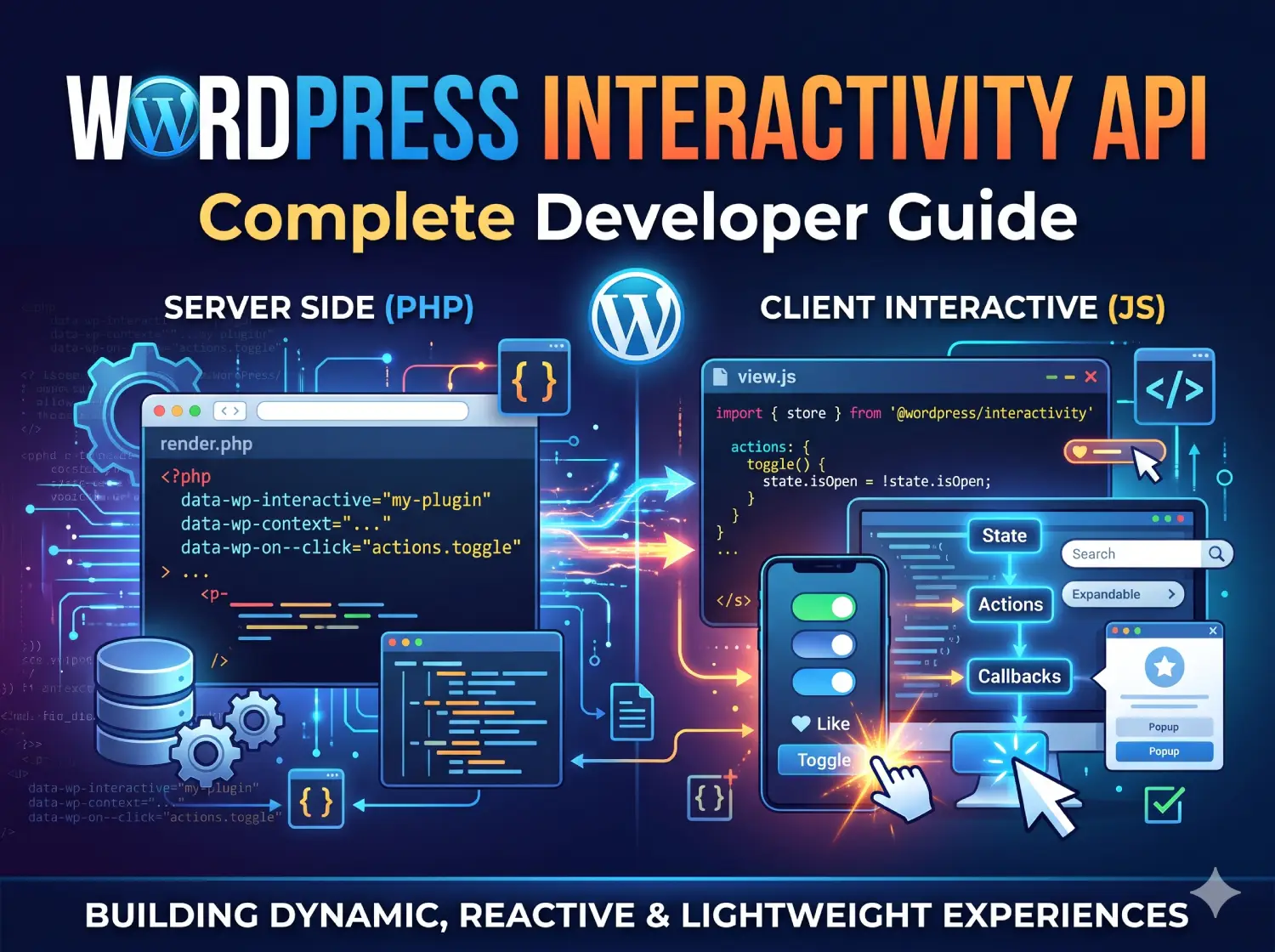
The WordPress Interactivity API provides a standard way to build interactive experiences on the front end of WordPress blocks. It allows developers to add interactions such as toggles, counters, popups, live updates, filters, instant search, shopping carts, and client-side navigation without having to build every feature from scratch with a separate JavaScript framework.
Table of Contents
Introduced in WordPress 6.5, the WordPress Interactivity API is built into WordPress Core and is powered by the @wordpress/interactivity package. Several WordPress Core blocks already use the technology, including Search, Query, Navigation, and File blocks.
The API is particularly important for modern WordPress block development because it provides a common approach for connecting HTML markup with JavaScript state, actions, callbacks, and server-rendered data. Instead of manually selecting DOM elements and attaching event listeners, developers can describe what an element should do using declarative Interactivity API directives.
This guide explains the WordPress Interactivity API from the fundamentals through practical development. You will learn about WordPress Interactivity API directives, stores, state, context, actions, callbacks, server-side rendering, Script Modules, block.json configuration, client-side navigation, accessibility, performance, debugging, and common development mistakes.
What Is the WordPress Interactivity API?
The WordPress Interactivity API is a standard system for adding front-end interactivity to WordPress blocks.
Traditional WordPress blocks can output HTML and CSS, but interactive features generally require JavaScript. Developers historically used different approaches such as vanilla JavaScript, jQuery, React, or custom event-handling code.
The WordPress Interactivity API introduces a standardized approach based around two major concepts:
- Directives — HTML attributes that describe interactive behavior.
- Store — JavaScript logic and data containing state, actions, callbacks, and related behavior.
The DOM is connected to the store through Interactivity API directives. When relevant state or context changes, the WordPress Interactivity API can reactively update the DOM.
A simplified example looks like this:
<div data-wp-interactive="myPlugin">
    <button data-wp-on--click="actions.toggle">
        Toggle
    </button>

    <p data-wp-bind--hidden="!context.isOpen">
        Hello from the Interactivity API.
    </p>
</div>
The HTML describes the behavior while the store contains the JavaScript logic.
This approach is different from manually writing code such as:
document.querySelector('.toggle-button').addEventListener('click', function () {
    document.querySelector('.message').classList.toggle('hidden');
});
Both approaches can create an interaction, but the WordPress Interactivity API provides a WordPress-specific architecture designed to work with blocks, server-side rendering, state management, accessibility, performance, and other WordPress systems.
Why Was the WordPress Interactivity API Introduced?
WordPress has traditionally supported interactive functionality, but different plugins and themes often implemented interactions in different ways.
For a small feature, custom JavaScript is easy. However, complexity increases when multiple blocks need to communicate with each other.
For example, consider an eCommerce page containing:
- A product block.
- An Add to Cart button.
- A cart counter.
- A mini-cart.
- A checkout component.
If every component uses unrelated JavaScript logic, sharing information between them can become difficult.
The WordPress Interactivity API provides a common architecture so WordPress Interactive blocks can share data, actions, and callbacks. WordPress describes this as one of the key advantages of using a common standard for WordPress block interactivity.
The standard also reduces the need for every plugin to ship a completely separate JavaScript framework for relatively small interactions.
WordPress Versions and Requirements
The WordPress Interactivity API is included in WordPress Core starting with WordPress 6.5. For older WordPress versions, the official documentation notes that Gutenberg 17.5 or later is required.
The basic development requirements include:
- WordPress 6.5 or later.
- A local WordPress development environment.
- Node.js.
- npm.
- A code editor.
- WordPress block development tooling.
The standard block development workflow does not fundamentally change when adding WordPress Interactivity API functionality.
How the WordPress Interactivity API Works
A useful mental model is:
HTML
  ↓
Interactivity Directives
  ↓
Store
  ↓
State / Context / Actions / Callbacks
  ↓
Reactive DOM Updates
For example:
- A user clicks a button.
- The button contains a
data-wp-on--clickdirective. - The directive calls an action from the store.
- The action changes state or context.
- The WordPress Interactivity API detects the change.
- Relevant directives update the DOM.
This creates a declarative and reactive development model.
Declarative vs Imperative JavaScript
Imperative Approach
Traditional JavaScript commonly tells the browser exactly what to do:
const button = document.querySelector('#toggle');
const content = document.querySelector('#content');

button.addEventListener('click', () => {
    content.classList.toggle('hidden');
});
The code explicitly finds elements and changes them.
Declarative Approach
With the WordPress Interactivity API, markup describes the desired relationship:
<button data-wp-on--click="actions.toggle">
    Toggle
</button>

<div data-wp-bind--hidden="!context.isOpen">
    Content
</div>
The Interactivity API directives declares what should happen, while the store provides the behavior.
This declarative approach is one of the central concepts behind the Interactivity API.
Interactivity API Architecture
A typical interactive block can contain several important files:
my-interactive-block/
├── block.json
├── render.php
├── view.js
├── edit.js
├── save.js
├── style.css
└── package.json
The exact structure depends on whether the block is static or dynamic, but an interactive block commonly uses:
- block.json for block metadata and Interactivity API support.
- render.php for server-rendered markup.
- view.js for front-end interactive logic.
- package.json for JavaScript dependencies and build scripts.
Creating an Interactive Block
The official quick-start workflow uses the WordPress interactive block template. A basic interactive block can be scaffolded with:
npx @wordpress/create-block@latest my-first-interactive-block --template @wordpress/create-block-interactive-templateThe official Quick Start Guide recommends this approach for getting started with an interactive block.
After creating the project, install the dependencies:
cd my-first-interactive-block
npm install
Then start the development environment using the project’s configured npm script.
Installing the Interactivity Package
The official documentation shows the Interactivity API package being installed with:
npm install @wordpress/interactivity --saveIt can then be imported into the front-end JavaScript:
import { store } from '@wordpress/interactivity';The @wordpress/interactivity package is bundled with WordPress Core from version 6.5.
Enabling Interactivity in block.json
Your block should declare support for WordPress Interactivity API functionality in block.json.
{
    "supports": {
        "interactivity": true
    }
}
This tells WordPress that the block uses the WordPress Interactivity API.
The official documentation also supports more specific configuration, including client-navigation-related support.
Using viewScriptModule
Interactive front-end JavaScript should be loaded as a Script Module.
In block.json:
{
    "viewScriptModule": "file:./view.js"
}
The Interactivity API provides its functionality through Script Modules so that your JavaScript can depend on @wordpress/interactivity.
When using viewScriptModule, the official documentation notes that the --experimental-modules flag is required for the relevant wp-scripts build and start commands.
For example:
{
    "scripts": {
        "build": "wp-scripts build --experimental-modules",
        "start": "wp-scripts start --experimental-modules"
    }
}
The interactive block template can configure this automatically.
What Are Interactivity API Directives?
Directives are custom data-wp-* attributes added to HTML markup.
They tell WordPress how a DOM element should behave.
For example:
<button data-wp-on--click="actions.toggle">
    Open
</button>
The data-wp-on--click directive connects the click event to an action.
Another example:
<p data-wp-text="state.message"></p>This connects the element’s text content to a value in the store.
The WordPress Interactivity API tutorial describes directives as custom attributes that attach behavior to DOM elements. They can be used in dynamic block render.php files or static block save.js output.
Important Interactivity API Directives
The API contains a range of directives for events, attributes, text, classes, styles, loops, watching changes, and other behavior.
| Directive | Purpose | Example |
|---|---|---|
| data-wp-interactive | Activates an interactive zone | data-wp-interactive=”myPlugin” |
| data-wp-on–click | Handles click events | data-wp-on–click=”actions.toggle” |
| data-wp-bind–hidden | Controls an HTML property/attribute | data-wp-bind–hidden=”!context.isOpen” |
| data-wp-text | Updates text content | data-wp-text=”state.message” |
| data-wp-class | Controls CSS classes | data-wp-class–active=”context.isActive” |
| data-wp-style | Controls styles | data-wp-style–display=”state.display” |
| data-wp-watch | Runs a callback when reactive values change | data-wp-watch=”callbacks.update” |
| data-wp-each | Renders repeated data | data-wp-each=”state.items” |
| data-wp-context | Provides local contextual data | data-wp-context='{“isOpen”:false}’ |
| data-wp-router-region | Defines a client-side navigation region | data-wp-router-region=”myPlugin/main” |
The wp-interactive Directive
The data-wp-interactive directive activates interactivity for an element and its descendants.
<div data-wp-interactive="myPlugin">
    <button data-wp-on--click="actions.toggle">
        Toggle
    </button>
</div>
The value identifies the store namespace.
This namespace is important because multiple plugins and blocks can have their own stores without conflicting with one another.
Creating a Store
The store contains the JavaScript logic for your interactive functionality.
A simple store can look like this:
import { store } from '@wordpress/interactivity';

store('myPlugin', {
    actions: {
        sayHello() {
            console.log('Hello from the Interactivity API');
        },
    },
});
Then connect it to HTML:
<div data-wp-interactive="myPlugin">
    <button data-wp-on--click="actions.sayHello">
        Click Me
    </button>
</div>
When the button is clicked, the sayHello action runs.
State in the Interactivity API
State represents data that can affect the interactive UI.
A simplified example is:
import { store } from '@wordpress/interactivity';

store('myPlugin', {
    state: {
        count: 0,
    },
});
State is useful for data that can be shared more broadly within an interactive feature.
For example:
- Current cart count.
- Whether a user is logged in.
- Selected filters.
- Search status.
- Loading status.
- Global UI preferences.
WordPress documentation distinguishes between global state, local context, derived state, and configuration so developers can choose the appropriate scope for their data.
Context for Local Interactive Data
Context is useful when data belongs to a particular interactive element or instance rather than the entire application.
For example, imagine multiple accordion items:
<div
    data-wp-interactive="myPlugin"
    data-wp-context='{"isOpen":false}'
>

    <button data-wp-on--click="actions.toggle">
        Toggle
    </button>

    <div data-wp-bind--hidden="!context.isOpen">
        Accordion content
    </div>

</div>
Each instance can maintain its own isOpen value.
This is particularly useful for reusable blocks where several instances appear on the same page.
Actions
Actions are functions that respond to user interactions.
For example:
import { store, getContext } from '@wordpress/interactivity';

store('myPlugin', {
    actions: {
        toggle() {
            const context = getContext();

            context.isOpen = !context.isOpen;
        },
    },
});
The corresponding HTML might be:
<button data-wp-on--click="actions.toggle">
    Toggle
</button>
Actions are generally the place where you implement behavior triggered by events.
Callbacks
Callbacks can be used for reactive side effects.
For example:
import { store, getContext } from '@wordpress/interactivity';

store('myPlugin', {
    callbacks: {
        logState() {
            const context = getContext();

            console.log(context.isOpen);
        },
    },
});
A callback can be connected using:
data-wp-watch="callbacks.logState"This allows behavior to react when relevant reactive data changes.
Using data-wp-text
The data-wp-text directive updates text content.
<p data-wp-text="state.message"></p>If the relevant state contains:
message: 'Hello WordPress'The paragraph displays the corresponding text.
This is useful for counters, messages, status indicators, search results, and dynamic labels.
Using data-wp-bind
The data-wp-bind family of directives allows values to control HTML properties or attributes.
For example:
<button
    data-wp-bind--aria-expanded="context.isOpen"
>
    Toggle
</button>
Another example is hiding an element:
<div data-wp-bind--hidden="!context.isOpen">
    Hidden content
</div>
This is preferable to manually modifying attributes through document.querySelector() when working within the WordPress Interactivity API model.
Using data-wp-class
The data-wp-class directive can conditionally apply CSS classes.
<div data-wp-class--active="context.isActive">
    Content
</div>
If context.isActive is true, the relevant class is applied.
This is useful for:
- Active tabs.
- Open menus.
- Selected filters.
- Expanded accordions.
- Loading states.
- Interactive navigation.
Using data-wp-style
Styles can also be controlled reactively.
<div data-wp-style--display="state.display">
    Dynamic content
</div>
However, developers should avoid unnecessarily moving large amounts of styling logic into JavaScript. Whenever possible, stable styling should remain in CSS while the WordPress Interactivity API controls the state-dependent portion.
Using data-wp-each
The data-wp-each directive is useful for rendering repeated data.
Conceptually, if your state contains a collection such as:
items: [
    { name: 'PHP' },
    { name: 'WordPress' },
    { name: 'Laravel' }
]
The template can use WordPress Interactivity API directives to render each item.
This is useful for:
- Product lists.
- Search results.
- Navigation items.
- Filters.
- Notifications.
- Dynamic collections.
Server-Side Rendering
One of the most important features of the WordPress Interactivity API is its integration with server-side rendering.
Interactive content does not have to depend entirely on JavaScript to generate its initial HTML.
For dynamic blocks, you can use render.php to generate markup and initialize data on the server.
WordPress provides functions such as:
- wp_interactivity_state()
- wp_interactivity_config()
- wp_interactivity_process_directives()
- wp_interactivity_data_wp_context()
The official documentation explains that server-defined state can be merged with client-side stores and can also take advantage of WordPress APIs such as translations and other server-side functionality.
wp_interactivity_state()
The wp_interactivity_state() function initializes server-side state for a namespace.
For example:
<?php

wp_interactivity_state(
    'myPlugin',
    array(
        'message' => 'Hello from PHP',
    )
);
The client-side store can then use the state.
This approach is particularly useful when initial data comes from WordPress PHP APIs.
For example, a dynamic block might retrieve posts, products, user information, or other WordPress data on the server and expose only the required values to the interactive UI.
wp_interactivity_config()
Configuration is intended for static configuration information.
For example:
<?php

wp_interactivity_config(
    'myPlugin',
    array(
        'showLikeButton' => is_user_logged_in(),
    )
);
This allows server-side configuration to be made available to the client.
Configuration should not be confused with reactive application state. If a value needs to change because of user interaction, it generally belongs in state or context instead.
wp_interactivity_data_wp_context()
When generating server-rendered markup, WordPress provides wp_interactivity_data_wp_context() as the recommended way to print a context directive.
<?php

$context = array(
    'counter' => 0,
    'isOpen'  => false,
);
?>

<div
    <?php echo wp_interactivity_data_wp_context($context); ?>
>
    Interactive content
</div>
This produces the appropriate data-wp-context attribute with serialized JSON.
Server-Side Directive Processing
The WordPress Interactivity API can process directives on the server before the HTML reaches the browser.
For example:
<?php

wp_interactivity_state(
    'myPlugin',
    array(
        'greeting' => 'Hello, World!',
    )
);

$html = '<div data-wp-text="myPlugin::state.greeting"></div>';

echo wp_interactivity_process_directives($html);
The resulting HTML can contain the server-rendered text.
This architecture is important because it allows WordPress to maintain useful server-rendered HTML while still providing client-side interactivity.
Static vs Dynamic WordPress Interactive Blocks
Static Blocks
A static block normally saves its markup through JavaScript.
Interactive directives can therefore be included in the markup generated by save.js.
Dynamic Blocks
A dynamic block can generate its markup through PHP.
This is especially useful when initial interactive data comes from WordPress APIs.
For example:
<?php

$posts = get_posts(
    array(
        'numberposts' => 5,
    )
);

?>

<div data-wp-interactive="myPlugin">

    <?php foreach ( $posts as $post ) : ?>

        <article>
            <h3>
                <?php echo esc_html( $post->post_title ); ?>
            </h3>
        </article>

    <?php endforeach; ?>

</div>
This combines WordPress PHP rendering with Interactivity API behavior.
Interactivity API and WordPress REST API
The Interactivity API does not replace the WordPress REST API.
Instead, they can work together.
The REST API can provide data while the Interactivity API manages the interactive UI.
A typical architecture might look like:
User action
    ↓
Interactivity API action
    ↓
REST API request
    ↓
WordPress REST endpoint
    ↓
JSON response
    ↓
Update state
    ↓
Reactive UI update
This can be useful for:
- Live search.
- Filtering.
- Pagination.
- Load-more functionality.
- Like buttons.
- Dynamic dashboards.
- Interactive product filtering.
Building a Simple Counter
A counter is a useful example for understanding the basic architecture.
HTML
<div
    data-wp-interactive="counter"
    data-wp-context='{"count":0}'
>

    <p>
        Count:
        <span data-wp-text="context.count">0</span>
    </p>

    <button data-wp-on--click="actions.increment">
        Increase
    </button>

</div>
view.js
import { store, getContext } from '@wordpress/interactivity';

store('counter', {
    actions: {
        increment() {
            const context = getContext();

            context.count++;
        },
    },
});
When the button is clicked:
- The click directive runs.
- The increment action executes.
- The context value increases.
- The data-wp-text directive reacts.
- The displayed number updates.
Building an Accordion
The same architecture can be used for an accordion.
<div
    data-wp-interactive="accordion"
    data-wp-context='{"isOpen":false}'
>

    <button
        data-wp-on--click="actions.toggle"
        data-wp-bind--aria-expanded="context.isOpen"
    >
        Frequently Asked Question
    </button>

    <div data-wp-bind--hidden="!context.isOpen">
        This is the answer to the question.
    </div>

</div>
The store:
import { store, getContext } from '@wordpress/interactivity';

store('accordion', {
    actions: {
        toggle() {
            const context = getContext();

            context.isOpen = !context.isOpen;
        },
    },
});
This is a good pattern for FAQ sections, dropdowns, mobile menus, and expandable content.
Interactivity API and Accessibility
Interactive functionality must be accessible.
Developers should not assume that adding a click event automatically creates an accessible component.
For example, when building an expandable panel, update the appropriate ARIA state:
data-wp-bind--aria-expanded="context.isOpen"Keyboard navigation should also be considered.
Important accessibility considerations include:
- Use semantic HTML.
- Use buttons for button actions.
- Use links for navigation.
- Maintain appropriate ARIA states.
- Ensure keyboard interaction works.
- Provide visible focus states.
- Do not hide important information unnecessarily.
- Provide screen-reader-friendly loading and navigation feedback.
The Interactivity API is designed to help WordPress handle some accessibility concerns, but accessibility remains partly the developer’s responsibility.
Client-Side Navigation
One of the more advanced capabilities connected with the Interactivity API is client-side navigation.
Client-side navigation allows users to move between pages without a traditional full-page browser reload.
The Interactivity Router fetches the destination page and updates designated sections of the DOM.
The official WordPress documentation recommends region-based client-side navigation as the primary approach.
The Interactivity Router
The relevant package is:
@wordpress/interactivity-routerThe package is included in WordPress Core from WordPress 6.5.
The router provides functionality such as:
- Navigation.
- Prefetching.
- Router regions.
- History management.
- Loading states.
- Accessibility announcements.
The router uses the core/router namespace and provides navigation-related actions.
Router Regions
A router region identifies the section of a page that should be updated during client-side navigation.
<div
    data-wp-interactive="myPlugin"
    data-wp-router-region="myPlugin/content"
>

    Page content

</div>
When navigation occurs, matching regions on the destination page can be replaced without rebuilding the entire page.
Each router region should have a unique identifier within the page.
Client-Side Navigation Example
A link can connect to an action:
<a
    href="/page-2/"
    data-wp-on--click="actions.navigateTo"
>
    Go to Page 2
</a>
The action can use the Interactivity Router to navigate without a traditional page reload.
The official documentation demonstrates this pattern using the router’s navigation functionality and synchronous event handling.
SEO and Client-Side Navigation
Client-side navigation does not mean that WordPress stops generating complete server-rendered pages.
The Interactivity Router is designed around fetching server-rendered HTML and updating designated regions.
This makes the approach substantially different from building a completely client-rendered single-page application.
The official documentation specifically identifies SEO-friendly behavior as one of the benefits because the server continues to render complete HTML pages.
Full-Page Client-Side Navigation
WordPress also documents an experimental full-page client-side navigation mode.
Instead of defining individual regions, this approach treats the entire <body> as a single router region.
As of the latest documentation, this feature remains experimental and is available through Gutenberg experiments rather than being treated as the standard production approach.
For production projects, developers should carefully evaluate compatibility before relying on experimental functionality.
Client-Side Navigation Compatibility
Not every existing WordPress block or JavaScript implementation automatically works with client-side navigation.
This is important when migrating older code.
According to the official compatibility guide:
| Implementation | Compatibility | Recommended approach |
|---|---|---|
| Non-interactive block | Yes | Enable client navigation support when appropriate |
| Interactivity API block | Yes, when guidelines are followed | Use Interactivity API support |
| Block using another interactive library | No | Evaluate or migrate the interaction model |
| Runtime CSS injection | No | Prefer server-rendered styles and Interactivity API directives |
| Regular scripts | No | Migrate to Script Modules |
| DOM-ready initialization | No | Use Interactivity API initialization patterns |
| Direct DOM mutation | No | Use directives or appropriate reactive callbacks |
The official compatibility documentation provides this distinction because client-side navigation can replace HTML without rerunning traditional initialization code.
Interactivity API vs jQuery
WordPress developers have historically used jQuery extensively for front-end interactions.
For example:
$('.toggle-button').on('click', function () {
    $('.content').toggle();
});
This remains technically possible, but it is not the architecture the Interactivity API is designed around.
With the WordPress Interactivity API, interaction logic becomes part of a standardized reactive system.
This provides several advantages for modern block development:
- Declarative markup.
- Reactive state.
- Better integration with block development.
- Shared stores.
- Server-side rendering.
- Script Module support.
- Client-side navigation integration.
Interactivity API vs React
The Interactivity API should not simply be viewed as another replacement for React.
React is a UI library and forms a major part of the WordPress editor architecture.
The Interactivity API is specifically focused on front-end interactivity for WordPress blocks.
Its goal is to provide a standard WordPress-oriented way to create interactive experiences while allowing WordPress to handle infrastructure such as hydration, server-side rendering, integration, and performance concerns.
Interactivity API vs Alpine.js
The programming style can feel familiar to developers who have used Alpine.js because both systems use declarative HTML attributes to describe behavior.
However, the WordPress Interactivity API is specifically designed around WordPress blocks, WordPress server-side rendering, block metadata, Script Modules, WordPress state, and WordPress navigation infrastructure.
The official WordPress documentation explicitly compares the directive-oriented approach to Alpine.js while emphasizing that the Interactivity API is designed to work seamlessly with WordPress.
Interactivity API and Performance
Performance is one of the major reasons for using a shared interaction standard.
If every plugin loads a different framework for a small feature, a page can end up downloading multiple JavaScript runtimes and libraries.
The Interactivity API allows multiple blocks to share the same underlying WordPress infrastructure.
Other performance advantages include:
- Reactive updates instead of unnecessary full DOM manipulation.
- Shared WordPress packages.
- Script Modules.
- Server-rendered initial HTML.
- Client-side navigation.
- Prefetching where appropriate.
However, using the Interactivity API does not automatically make every implementation fast. Developers still need to minimize unnecessary state, avoid excessive watchers, optimize API requests, and keep interactive components focused.
Security Considerations
The Interactivity API does not eliminate normal WordPress security requirements.
When interactive code communicates with PHP, REST endpoints, AJAX handlers, or other server-side functionality, developers must continue to use appropriate WordPress security mechanisms.
Important practices include:
- Validate incoming data.
- Sanitize data when appropriate.
- Escape output.
- Use WordPress capabilities and authorization checks.
- Use nonces where the relevant API requires them.
- Do not trust client-side state.
- Do not expose sensitive server-side information unnecessarily.
Client-side state should never be treated as a security boundary.
Common Interactivity API Mistakes
1. Forgetting data-wp-interactive
Directives need an interactive context.
Make sure the relevant DOM tree is activated:
<div data-wp-interactive="myPlugin">
    ...
</div>
2. Incorrect Namespace
If your store uses:
store('myPlugin', { ... });your interactive markup needs to reference the same namespace where appropriate.
3. Loading JavaScript Incorrectly
Modern Interactivity API development expects Script Modules.
Use:
"viewScriptModule": "file:./view.js"rather than treating an interactive Script Module like an old-style front-end script.
4. Direct DOM Manipulation
Avoid mixing large amounts of traditional DOM mutation into an Interactivity API component.
Instead of:
document.querySelector('.message').textContent = 'Updated';prefer reactive state and directives.
5. Putting Everything in Global State
Not every value needs global state.
Use local context for instance-specific data.
For example, multiple accordions should generally not need separate global variables just to track whether each one is open.
6. Ignoring Accessibility
Interactive functionality must remain usable with keyboard navigation and assistive technologies.
7. Assuming Client Navigation Works with Old JavaScript
Legacy initialization patterns can break when the router replaces HTML without a traditional full-page reload.
Review the official client-side navigation compatibility guidelines before enabling this functionality.
Debugging WordPress Interactivity API Code
When an interactive block does not work, check the following in order.
Check the Browser Console
Look for JavaScript module errors, import errors, or runtime exceptions.
Check the Generated HTML
Inspect the page source or browser DOM and verify that directives such as:
data-wp-interactive
data-wp-context
data-wp-on--click
data-wp-text
data-wp-bind--*
are present and correctly formatted.
Check the Store Namespace
Verify that the namespace in the HTML corresponds to the namespace registered by store().
Check viewScriptModule
Confirm that the Script Module is registered and loaded.
Check Build Configuration
Verify that your build scripts support Script Modules.
Check State and Context
If an action runs but the UI does not update, inspect whether the action is changing the expected reactive state or context.
Best Practices for WordPress Interactivity API Development
1. Keep Interactive Components Small
Do not place unrelated functionality into a single store.
2. Use Context for Instance-Specific Data
Context is especially useful for reusable components such as accordions, tabs, dropdowns, and modals.
3. Use Global State Carefully
Global state is useful when multiple interactive components need to communicate.
4. Keep Server and Client Responsibilities Clear
PHP should handle server-side data retrieval and authorization, while the client handles user interactions and UI updates.
5. Prefer Server Rendering When Appropriate
Server-rendered HTML provides a strong initial experience and integrates well with WordPress.
6. Use Semantic HTML
Do not rely on JavaScript to make an otherwise inappropriate HTML element behave like a button or link.
7. Avoid Unnecessary JavaScript
If CSS can solve a simple visual requirement, use CSS instead of JavaScript.
8. Consider Client-Side Navigation Compatibility
If your block needs to work with client-side navigation, follow the official compatibility requirements from the beginning.
9. Use Official WordPress Packages
Use WordPress-provided packages where appropriate instead of introducing unnecessary third-party dependencies.
10. Test Multiple Instances
Always test a block more than once on the same page.
This is especially important when using local context, because reusable blocks should maintain independent state.
When Should You Use the WordPress Interactivity API?
The WordPress Interactivity API is particularly useful when developing blocks that require front-end behavior.
Good use cases include:
- Accordion components.
- Tabs.
- Dropdown menus.
- Modal windows.
- Interactive counters.
- Live search.
- Filters.
- Load-more interfaces.
- Product interactions.
- Shopping carts.
- Wishlist controls.
- Interactive quizzes.
- Instant page navigation.
- Dynamic content components.
The official WordPress documentation highlights use cases ranging from simple counters and popups to instant search, carts, checkout experiences, and navigation.
When Should You Not Use the WordPress Interactivity API?
Not every front-end feature needs it.
You probably do not need the WordPress Interactivity API for:
- Pure CSS animations.
- Static content.
- Simple styling.
- Server-rendered content with no interaction.
- Very small scripts where the API would add unnecessary complexity.
The goal is not to replace every JavaScript implementation. The goal is to provide a consistent architecture when WordPress block interactivity is required.
WordPress Interactivity API Project Structure
A practical project might look like this:
interactive-products/
├── interactive-products.php
├── src/
│   ├── block.json
│   ├── edit.js
│   ├── render.php
│   ├── save.js
│   ├── view.js
│   └── style.css
├── build/
├── package.json
└── readme.txt
The exact structure depends on your scaffolding and build configuration, but keeping front-end interaction logic separate from editor logic makes the project easier to maintain.
Example Interactive Product Filter Architecture
A more realistic project could use the following architecture:
Product Filter Block
        |
        +-- Context
        |     +-- selectedCategory
        |     +-- searchTerm
        |
        +-- Actions
        |     +-- updateCategory
        |     +-- updateSearch
        |     +-- loadProducts
        |
        +-- REST API
        |
        +-- State
        |     +-- products
        |     +-- loading
        |     +-- error
        |
        +-- Directives
              +-- wp-on
              +-- wp-bind
              +-- wp-text
              +-- wp-each
This illustrates how the API can become the foundation for larger interactive block features.
TypeScript with the Interactivity API
The official WordPress Interactivity API tutorial also includes guidance for TypeScript.
TypeScript can be valuable when an interactive store becomes more complex.
For example, a product type could be represented as:
interface Product {
    id: number;
    name: string;
    price: number;
}
This can help identify incorrect data structures earlier during development.
TypeScript becomes particularly useful when working with:
- Complex stores.
- Large interactive blocks.
- REST API responses.
- Multiple actions.
- Derived state.
- Shared types.
The official Core Concepts documentation includes a dedicated guide for using TypeScript with Interactivity API stores.
WordPress Interactivity API and WooCommerce
The architecture is particularly interesting for WooCommerce and custom eCommerce blocks.
Consider a product card with:
- Quantity selector.
- Add to Cart button.
- Wishlist button.
- Product variation selector.
- Cart counter.
These components can potentially communicate through shared interactive state rather than each implementing unrelated DOM logic.
This is one reason the Interactivity API is relevant to modern WordPress eCommerce development.
Interactivity API and Custom WordPress Plugins
Plugin developers can use the API to build modern front-end components without introducing a complete external front-end framework for every feature.
Examples include:
- Membership interfaces.
- Private content toggles.
- Advanced search.
- Admin-related front-end widgets.
- Media galleries.
- Interactive forms.
- Product visibility controls.
- Custom dashboards.
For plugin developers, the main benefit is consistency with WordPress’s evolving front-end block architecture.
WordPress Interactivity API Development Workflow
A practical development workflow can be summarized as:
- Identify the interactive requirement.
- Create or scaffold the block.
- Enable Interactivity API support.
- Create the server-rendered or saved markup.
- Add the
data-wp-interactivedirective. - Define context and/or state.
- Create actions and callbacks.
- Connect directives to the store.
- Build Script Modules.
- Test keyboard and accessibility behavior.
- Test multiple block instances.
- Test server-rendered output.
- Test performance.
- Test client-side navigation compatibility if applicable.
Important Interactivity API Functions and Concepts
| Concept | Purpose |
|---|---|
| store() | Defines an Interactivity API store. |
| getContext() | Accesses the current local context. |
| wp_interactivity_state() | Initializes server-side state. |
| wp_interactivity_config() | Sets or retrieves namespace configuration. |
| wp_interactivity_process_directives() | Processes Interactivity API directives in HTML. |
| wp_interactivity_data_wp_context() | Generates the server-side context directive. |
| @wordpress/interactivity-router | Provides client-side navigation functionality. |
| data-wp-interactive | Activates an interactive DOM zone. |
| data-wp-on–* | Connects DOM events to actions. |
| data-wp-text | Updates text content reactively. |
| data-wp-bind–* | Controls element properties and attributes. |
| data-wp-context | Defines local interactive context. |
| data-wp-router-region | Defines a client-side navigation region. |
Future of WordPress Front-End Interactivity
The WordPress Interactivity API represents an important direction for modern WordPress development.
WordPress has traditionally been extremely flexible because developers can use PHP, JavaScript, REST APIs, jQuery, WordPress custom themes, plugins, and many other technologies.
The challenge is maintaining that flexibility while providing common standards for increasingly interactive websites.
The WordPress Interactivity API addresses this challenge by providing a WordPress-specific architecture for front-end interaction.
Its integration with server rendering, Script Modules, blocks, state management, and client-side navigation makes it more than just an event-handling library.
WordPress Interactivity API vs Traditional WordPress JavaScript
| Feature | Traditional Custom JavaScript | Interactivity API |
|---|---|---|
| Event handling | Manual event listeners | Declarative directives |
| State | Developer-defined | Standardized store/state/context model |
| DOM updates | Usually manual | Reactive |
| WordPress integration | Developer responsibility | Built into the architecture |
| Server rendering | Manual integration | Supported by API infrastructure |
| Block integration | Custom | Designed for blocks |
| Client-side navigation | Custom implementation | Interactivity Router |
| Shared interaction model | Depends on developer | Standard WordPress approach |
Frequently Asked Questions
What is the WordPress Interactivity API?
The WordPress Interactivity API is a standard WordPress system for adding front-end interactivity to blocks. It uses declarative directives, stores, state, context, actions, callbacks, and server-side rendering to build interactive experiences.
When was the Interactivity API introduced?
The Interactivity API was introduced in WordPress 6.5 and the @wordpress/interactivity package is bundled with WordPress Core from that version.
Do I need React to use the Interactivity API?
No. You do not need to build your front-end interaction using React to use the Interactivity API. The API provides its own declarative and reactive architecture for front-end block interactions.
Is the Interactivity API replacing React in WordPress?
No. React remains important within WordPress development, particularly for the block editor. The Interactivity API is focused primarily on standardized front-end interactivity.
Is the Interactivity API available in WordPress 6.5?
Yes. The Interactivity API was included in WordPress Core beginning with WordPress 6.5.
What is a directive in the Interactivity API?
A directive is a special data-wp-* HTML attribute that connects an element with interactive behavior.
What is the difference between state and context?
State is generally used for data that needs broader sharing, while context is useful for data associated with a particular interactive instance or local scope.
What is data-wp-interactive?
data-wp-interactive activates an interactive zone and identifies the namespace used by the relevant store.
Can the Interactivity API work with PHP?
Yes. The API is designed to work closely with server-side WordPress development. Functions such as wp_interactivity_state() and wp_interactivity_config() allow PHP code to provide data to interactive components.
Can I use the Interactivity API with dynamic blocks?
Yes. Dynamic blocks can use render.php to output interactive markup and initialize server-side data.
Can I use the Interactivity API with static blocks?
Yes. Static blocks can include Interactivity API directives in the markup generated by save.js.
Does the Interactivity API support client-side navigation?
Yes. WordPress provides the @wordpress/interactivity-router package for client-side navigation. Region-based client-side navigation is the recommended approach, while full-page navigation remains experimental according to the latest documentation.
Is client-side navigation SEO friendly?
The Interactivity Router is designed to work with server-rendered HTML. The official documentation identifies SEO friendliness as a benefit because complete HTML pages continue to be rendered by the server.
Can I use jQuery with the Interactivity API?
You technically can have jQuery elsewhere on a WordPress site, but interactive components designed around the Interactivity API should generally follow its reactive and declarative model rather than mixing large amounts of direct DOM manipulation.
Is the Interactivity API suitable for WooCommerce?
Yes. Its architecture is particularly useful for interactive eCommerce features such as product filtering, cart interactions, quantity controls, and other dynamic interfaces.
Does the Interactivity API improve performance?
It can. A shared WordPress interaction system can reduce the need for multiple independent JavaScript frameworks, while server rendering, Script Modules, reactive updates, and client-side navigation can provide additional performance benefits when implemented correctly.
References:
- Interactivity API Reference
- Interactivity API Quick Start Guide
- Directives and Store
- Interactivity API Core Concepts
- Client-Side Navigation
- Client-Side Navigation Compatibility
- @wordpress/interactivity-router
Conclusion
The WordPress Interactivity API tutorial provides a standardized way to build modern interactive experiences for WordPress blocks.
Instead of manually combining HTML, JavaScript event listeners, DOM manipulation, and custom state-management systems, developers can use a WordPress-native architecture based on directives, stores, state, context, actions, callbacks, and server-side rendering.
The most important concepts to understand are:
- Directives connect HTML elements to interactive behavior.
- Stores contain application logic and data.
- State provides reactive data that can be shared.
- Context provides local data for interactive instances.
- Actions respond to user interactions.
- Callbacks handle reactive side effects.
- Server-side state allows PHP and WordPress APIs to participate in interactive experiences.
- Script Modules provide the modern JavaScript loading mechanism.
- Interactivity Router enables client-side navigation.
- Router regions determine which page areas are updated during navigation.
For WordPress developers who are already comfortable with PHP and custom block development, learning the Interactivity API is a valuable next step toward building modern WordPress front ends.
The best way to learn it is not by memorizing every directive. Start with a small interactive block such as a counter, accordion, tabs component, modal, or filter. Then gradually introduce server-side state, REST API integration, shared state, and client-side navigation.
The official WordPress documentation should remain the primary reference because the Interactivity API continues to evolve alongside WordPress Core. The current documentation includes dedicated material for directives and stores, server-side rendering, TypeScript, client-side navigation, and navigation compatibility.