Requested Page Not Found WordPress Error (2026 Helpful Guide) – Causes & Fixes
WordpressSep 23, 2015
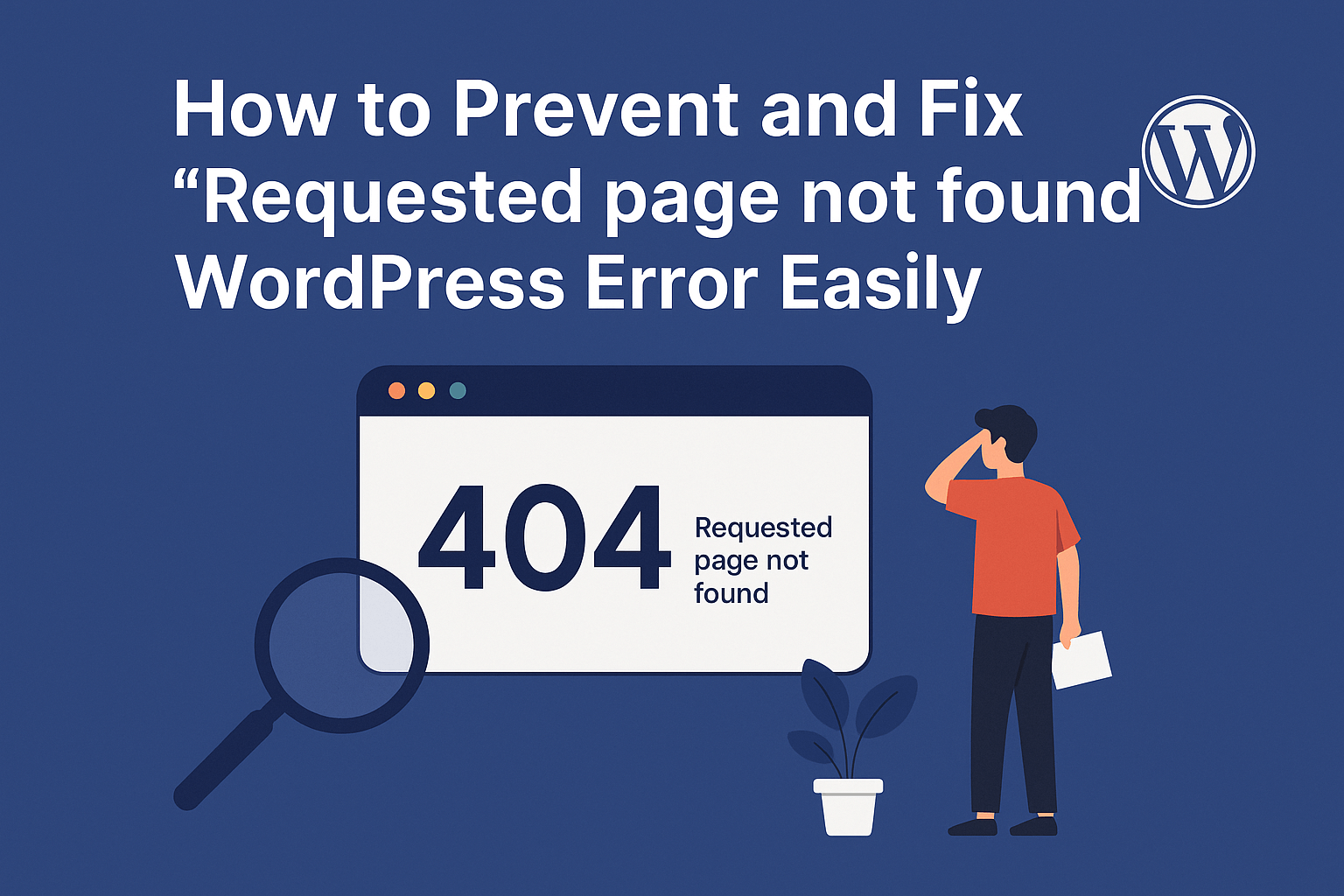
Encountering the “Requested Page Not Found WordPress” error in WordPress can be frustrating for both website owners and visitors. This error typically appears when a user tries to access a page that doesn’t exist or cannot be located by the server.
Table of Contents
In 2026, with evolving WordPress updates, hosting environments, and SEO expectations, fixing this issue requires a more structured approach. In this guide, we’ll walk through why this error occurs and how to fix it step-by-step, ensuring your website remains accessible, SEO-friendly, and user-friendly.
What is the “Requested Page Not Found WordPress” Error?
The “Requested Page Not Found WordPress” error is similar to a 404 error, meaning the server cannot find the requested resource.
It usually happens when:
- A page or post has been deleted
- The URL structure has changed
- Permalinks are misconfigured
- Server rewrite rules are missing
- Plugin or theme conflicts occur
Common Causes of the Requested Page Not Found WordPress Error
1. Incorrect Permalink Settings
WordPress uses permalinks to generate URLs. If these are not properly configured, your pages may stop working.
2. Missing or Deleted Pages
If a page or post is deleted but still indexed or linked, users will see this error.
3. .htaccess File Issues
The .htaccess file controls URL rewriting. A corrupted or missing file can break your links.
4. Apache/Nginx Configuration Problems
If URL rewriting modules like mod_rewrite are disabled, permalinks won’t work.
5. Plugin or Theme Conflicts
Some plugins or themes may override routing behavior, causing pages to become inaccessible.
6. Migration or Domain Change Issues
During WordPress migration or domain updates, URLs may not update properly.
Step-by-Step Solutions for Requested Page Not Found WordPress Error (2026 Updated)
1. Reset Permalinks (Most Common Fix for Requested Page Not Found WordPress Error)
This is the quickest and most effective solution.
Steps:
- Go to WordPress Dashboard
- Navigate to Settings → Permalinks
- Select Default
- Click Save Changes
- Switch back to your preferred structure (e.g., Post Name)
- Click Save Changes again
This refreshes rewrite rules and fixes most issues instantly.
2. Regenerate .htaccess File
If resetting permalinks doesn’t work:
- Access your website via FTP or File Manager
- Locate
.htaccessin the root directory - Rename it to
.htaccess_old - Go back to Permalinks settings
- Click Save Changes
WordPress will automatically create a new .htaccess file.
3. Enable mod_rewrite (Apache Servers)
If you are using Apache:
- Locate your server configuration
- Enable
mod_rewrite
Example command:
a2enmod rewrite
service apache2 restart
Also ensure your .htaccess contains:
<IfModule mod_rewrite.c>
RewriteEngine On
RewriteBase /
RewriteRule ^index\.php$ - [L]
RewriteCond %{REQUEST_FILENAME} !-f
RewriteCond %{REQUEST_FILENAME} !-d
RewriteRule . /index.php [L]
</IfModule>
4. Check Nginx Configuration
If using Nginx, ensure your config includes:
location / {
    try_files $uri $uri/ /index.php?$args;
}
5. Disable Plugins Temporarily
- Go to Plugins → Installed Plugins
- Deactivate all plugins
- Check if the issue is resolved
- Reactivate plugins one by one
This helps identify conflicting plugins.
6. Switch to Default Theme
Sometimes themes cause routing issues.
- Switch to a default theme like Twenty Twenty-Six
- Check if the issue persists
7. Fix Broken Links & Redirects
Use plugins like:
- Redirection
- Rank Math SEO
Set up proper 301 redirects for deleted or moved pages.
8. Update Site URL
Check your site URL:
- Go to Settings → General
- Verify:
- WordPress Address (URL)
- Site Address (URL)
Incorrect values can cause page errors.
9. Clear Cache
Clear all caches:
- Browser cache
- WordPress caching plugins
- CDN (Cloudflare, etc.)
SEO Impact of This Requested Page Not Found WordPress Error
This error can negatively impact your SEO:
- Poor user experience
- Increased bounce rate
- Loss of rankings
- Broken internal links
How to Fix SEO Issues:
- Use 301 redirects
- Submit updated sitemap to Google
- Fix broken internal links
- Monitor via Google Search Console
Best Practices to Avoid This Error in 2026
- Always test permalinks after migration
- Maintain proper redirects
- Regularly audit broken links
- Use reliable hosting
- Keep WordPress, themes, and plugins updated
- Backup your site before major changes
About WordPress
WordPress is an open-source CMS written in PHP and is one of the most popular platforms for building websites.
- First released in 2003
- Created by Matt Mullenweg and Mike Little
- Powers over 40% of websites globally (2026 estimate)
- Offers thousands of plugins and themes
It is widely used for blogs, business websites, eCommerce stores, and more.
References
- WordPress.org – https://wordpress.org/support/
- Apache HTTP Server Documentation – https://httpd.apache.org/docs/
- Nginx Documentation – https://nginx.org/en/docs/
- Google Search Central – https://developers.google.com/search/docs
Conclusion
Fixing the “Requested Page Not Found WordPress” error is usually straightforward once you understand its root cause. In most cases, resetting permalinks or fixing server rewrite rules resolves the issue.
By following this 2026 guide, you can:
- Quickly diagnose the problem
- Apply the correct fix
- Improve your website’s SEO and user experience
Don’t let broken links ruin your site—stay proactive and keep your WordPress environment optimized.