We live in an era where the entirety of human knowledge is a click away. You type a URL, hit “Enter,” and milliseconds later, a fully interactive page appears. But what happens in those few milliseconds is a symphony of engineering, involving underwater cables, massive data centers, complex cryptographic handshakes, and routing protocols that span the globe.
Table of Contents
Understanding how the web works is a superpower. For marketers, it’s the key to mastering site speed and SEO. For business owners, it’s essential for assessing security risks and web hosting costs. And for everyday users, it demystifies privacy in an increasingly connected world.
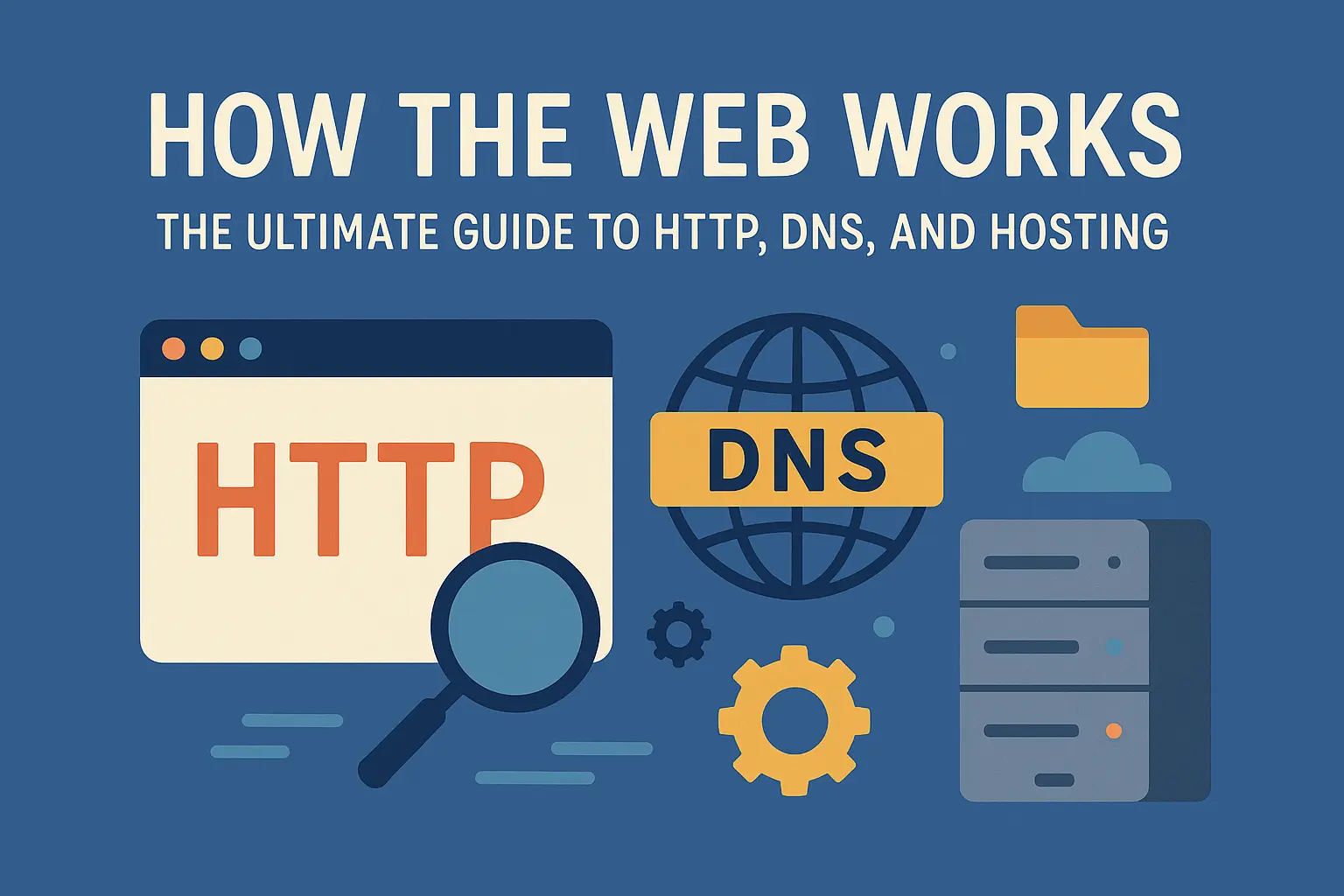
This guide serves as a deep dive into the four pillars of the web: DNS (finding the address), HTTP vs HTTPS (speaking the language), Hosting (storing the data), and the Client-Server model.
The Big Picture: The Client-Server Model
Understanding How the Web Works:
At its core, the internet is a massive network of cables and computers talking to each other. To make sense of this chaos, we use a specific architecture called the Client-Server Model.
The Client (The Asker)
The “Client” is the device or software asking for information. In 99% of cases, this is your web browser (Chrome, Firefox, Safari) running on your computer or smartphone. However, a client can also be a mobile app fetching weather data or a smart fridge checking for software updates. The client’s job is to send a clear request and render the response into something humans can understand.
The Server (The Provider)
The “Server” is a powerful computer located somewhere else in the world—often in a climate-controlled data center—that stores files. These files include HTML (structure), CSS (style), JavaScript (logic), images, and database entries. The server’s job is to listen for requests 24/7 and send back the correct files.
The Network (The Road)
Connecting the two is the internet infrastructure: ISP (Internet Service Providers), routers, switches, and fiber-optic cables.
Beginner Analogy: Think of the web as a restaurant.
- You (Client): You are the customer looking at the menu.
- Waiter (HTTP): The messenger who takes your order to the kitchen and brings the food back.
- Kitchen (Server): Where the ingredients (data) are stored and the meal (website) is prepared.
- Phonebook (DNS): The directory you use to find exactly where the restaurant is located (the IP address).
What is DNS: The Phonebook of the Internet
When you want to visit Google, you type google.com. But computers don’t understand words; they understand numbers, specifically IP addresses (like 142.250.190.46). The Domain Name System (DNS) is the translator that bridges this gap.
The DNS Hierarchy
DNS is not a single database; it is a distributed hierarchical system. When you type a URL, your computer doesn’t instantly know where to go. It initiates a “DNS Lookup.”
- The Recursive Resolver: This is usually provided by your ISP. Think of it as a librarian. You ask it, “Where is https://www.google.com/search?q=google.com?” If it doesn’t know, it goes to ask the higher-ups.
- The Root Nameservers: There are 13 logical root server clusters worldwide. They don’t know where google.com is, but they know who handles all .com domains. They direct the resolver to the TLD Server.
- The TLD (Top-Level Domain) Server: This server manages the extensions (.com, .org, .net). It knows where the authoritative records for google.com are kept.
- The Authoritative Nameserver: This is the final stop. This server is owned or managed by the domain owner (often via registrars like GoDaddy or Namecheap). It holds the actual IP address.
Key DNS Records Explained
For professionals, understanding DNS records is crucial for site management and email deliverability.
- A Record (Address Record): Maps a domain (example.com) to an IPv4 address. This is the most critical record for loading a website.
- AAAA Record: The same as an A Record, but for IPv6 addresses (the newer, longer IP format).
- CNAME (Canonical Name): Maps an alias to another domain name. For example, www.example.com might be a CNAME for example.com.
- MX Record (Mail Exchange): Directs email to the correct mail server. If this is wrong, you won’t receive emails.
- TXT Record: Used for text information, often for verification (Google Search Console) or security (SPF/DKIM for email).
Pro Tip: DNS propagation (the time it takes for changes to update worldwide) happens because ISPs cache DNS records to save time. This can take up to 48 hours to clear, though modern infrastructure often updates in minutes.
HTTP: The Language of the Web
Once the client has the IP address from DNS, it needs to talk to the server. The language they use is HyperText Transfer Protocol (HTTP). It is a stateless, text-based protocol, meaning every request is independent of the previous one.
Anatomy of an HTTP Request
A request sent by your browser contains several key components:
- The URL: The target address.
- The Method: What action you want to perform.
- Headers: Metadata about the request (e.g., “User-Agent” tells the server you are using Chrome; “Accept-Language” tells the server you prefer English).
- Body: Data sent by the client (used mostly when submitting forms).
HTTP Methods (Verbs)
- GET: Retrieve data. This is what happens when you visit a page. You are “getting” the HTML.
- POST: Send data to the server to create a resource. (e.g., signing up for a newsletter).
- PUT: Update an existing resource (e.g., changing your profile picture).
- DELETE: Remove a resource (e.g., deleting a comment).
HTTP Status Codes
When the server responds, it includes a 3-digit number indicating the result.
- 2xx (Success): 200 OK (Everything is good).
- 3xx (Redirection): 301 Moved Permanently (The page has moved to a new URL).
- 4xx (Client Error):
- 404 Not Found (The resource doesn’t exist).
- 403 Forbidden (You don’t have permission).
- 5xx (Server Error): 500 Internal Server Error (Something broke on the server’s side).
HTTPS: Secure Communication
HTTP sends data in “plaintext.” If you log into your bank using HTTP, a hacker sitting on the same Wi-Fi network could intercept the data packet and read your password as clearly as reading this sentence.
HTTPS (HyperText Transfer Protocol Secure) adds a layer of encryption using SSL (Secure Sockets Layer) or its successor, TLS (Transport Layer Security).
Why Security Matters (SEO & Trust)
- Privacy: Prevents eavesdropping.
- Integrity: Ensures data wasn’t modified in transit.
- Authentication: Proves the website is actually who it claims to be (avoiding phishing).
- SEO Ranking: Google explicitly favors HTTPS websites. Non-secure sites are flagged as “Not Secure” in Chrome, hurting user trust.
The SSL/TLS Handshake
How do two computers agree on a secret code without meeting? They use Asymmetric Encryption.
- Client Hello: Browser sends supported encryption methods.
- Server Hello: Server replies with its SSL Certificate (which contains its Public Key).
- Verification: The browser checks if the certificate is valid (issued by a trusted Certificate Authority).
- Key Exchange: The client uses the server’s Public Key to encrypt a generated “Session Key.”
- Secure Session: Only the server has the Private Key to decrypt this. Now, both parties have the “Session Key,” and they switch to Symmetric Encryption (which is faster) for the rest of the conversation.
Web Hosting: The Physical Internet
All the code and files for a website must live on a physical storage drive somewhere. This service is called Web Hosting.
Web Server Software
Hardware is the metal; software is the brain. The two most popular web server software are:
- Apache: The old standard. highly customizable via .htaccess files.
- Nginx (pronounced Engine-X): Known for high performance and handling many concurrent connections. Often used as a reverse proxy.
Types of Web Hosting
1. Shared Web Hosting
- Concept: Like living in an apartment building. You share resources (CPU, RAM) with hundreds of other websites.
- Pros: Cheapest option, easy setup.
- Cons: “Bad Neighbor” effect—if one site gets huge traffic, your site might slow down.
- Best For: Personal blogs, small business portfolios.
2. VPS (Virtual Private Server)
- Concept: Like a condo. You still share the physical building (server), but you have dedicated walls and resources allocated strictly to you.
- Pros: More control (root access), stable performance.
- Cons: Requires some technical knowledge to manage.
- Best For: Growing e-commerce sites, developers.
3. Dedicated Web Hosting
- Concept: You own the house. The entire physical server is yours.
- Pros: Maximum performance, total control.
- Cons: Expensive, requires a sysadmin to maintain.
- Best For: Enterprise sites, massive traffic.
4. Cloud Web Hosting (AWS, Google Cloud, Azure)
- Concept: The resource is not on one machine but spread across a network of virtual machines. If one fails, another takes over.
- Pros: Infinite scalability. You pay for what you use (utility billing).
- Cons: Complex setup; costs can be unpredictable if usage is not monitored.
- Best For: Startups, SaaS platforms, apps with fluctuating traffic.
The Journey of a Request: Step-by-Step
Let’s tie it all together. Here is exactly what happens when you navigate to https://www.example.com.
- Browser Check: You type the URL. The browser checks its cache to see if it already knows the IP.
- DNS Lookup: If not cached, the ISP’s recursive resolver queries the DNS hierarchy (Root -> TLD -> Authoritative) to find the IP address.
- TCP Connection: The browser initiates a TCP handshake with the server at that IP address (SYN, SYN-ACK, ACK).
- TLS Handshake: Because it’s HTTPS, the encryption keys are exchanged to secure the tunnel.
- HTTP Request: The browser sends a request (often using HTTP/2 or HTTP/3 for speed) to the server.
- Server Processing: The web server (Nginx/Apache) receives the request. If the page is dynamic (e.g., PHP or Python), it asks an Application Server to query the Database (SQL) and build the HTML.
- HTTP Response: The server sends back a 200 OK status with the HTML code in the body.
- Teardown: The connection is closed (unless Keep-Alive is active).
Browser Rendering: From Code to Visuals
The data has arrived, but it’s just text. How does it become a visual page? This is the Critical Rendering Path.
- Parsing HTML (DOM): The browser reads the HTML tags and builds the Document Object Model (DOM) tree. This is the skeleton of the page.
- Parsing CSS (CSSOM): The browser reads the CSS files and builds the CSS Object Model. This defines the styles (colors, fonts, layout).
- JavaScript Execution: JS is downloaded and parsed. It might modify the DOM or CSSOM (e.g., hiding a banner, loading a popup). Note: “Render Blocking” JavaScript can pause the page load, which is bad for SEO.
- Render Tree: The DOM and CSSOM are combined to create a Render Tree, which contains only the visible elements.
- Layout (Reflow): The browser calculates the exact position and size of every element on the screen based on the viewport size (mobile vs. desktop).
- Paint: The browser fills in the pixels (colors, images, borders).
- Composite: Layers are stacked together to produce the final image you see.
SEO Note: Google’s Core Web Vitals measure how fast this process feels to the user. “Largest Contentful Paint” (LCP) measures when the main content is visible.
References
- https://developer.mozilla.org/en-US/docs/Web/HTTP
- https://developers.google.com/search
- https://www.cloudflare.com/learning/dns/what-is-dns/
- https://tools.ietf.org/html/rfc2616
- https://www.w3.org/standards/
Conclusion
The World Wide Web is a masterpiece of interoperability. It relies on strict standards: DNS ensures we can find each other, HTTP ensures we can understand each other, and Web Hosting provides the physical space for our digital existence.
For the user, it is seamless magic. For the developer and the SEO professional, it is a machine of moving parts where optimization in one area (like upgrading web hosting or implementing HTTP/2) can drastically improve the user experience. Understanding these layers is the first step in mastering the digital landscape.