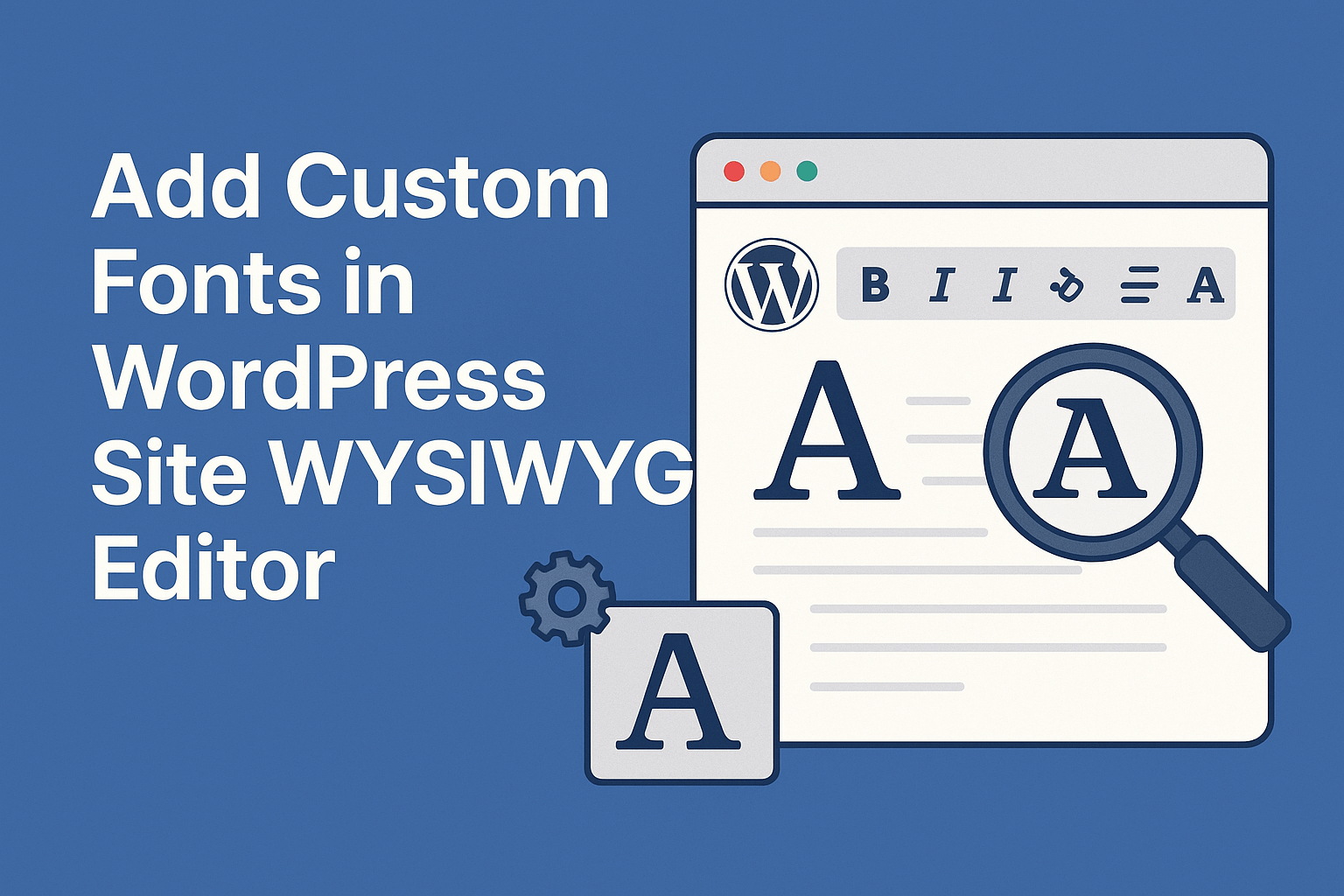
Do You Want To Add Fonts In WordPress WYSIWYG Editor? Follow this article for a solution.
Table of Contents
Typography is not just about choosing fonts; it’s an art that can transform your WordPress website into a captivating visual experience.
While custom fonts in wordpress can enhance your content, what if you could take it a step further and add interactivity to your typography?
We’ll explore the enchanting world of interactive fonts in the WordPress WYSIWYG editor. Get ready to unlock the magic and captivate your audience with typography that goes beyond the ordinary!
What is the WordPress WYSIWYG Editor?
The WordPress editor allows you to create content visually without coding. Traditionally powered by TinyMCE, modern WordPress uses the Block Editor (Gutenberg).
- Classic Editor → TinyMCE (font dropdown customization needed)
- Block Editor → Typography settings + theme.json
Why Add Custom Fonts in WordPress?
Custom fonts help you:
- Build a strong brand identity
- Improve readability and UX
- Create visually engaging content
- Stand out from competitors
Add Custom Fonts In WordPress WYSIWYG Editor
WordPress comes with a built-in WYSIWYG editor that allows you to easily format your text and add images to your posts and pages. However, the default fonts that are available in the editor may not be to your liking.
Here is a Solution For Add Fonts In WordPress WYSIWYG Editor.
Changing fonts and their sizes are two different things.
If you want to change fonts, there are multiple ways.
- You can use the WordPress theme editor and edit your style.css and enter your desired fonts, however this is something for an advanced user. You can use following code: body {font-family: Verdana, Arial,Helvetica, Futura, sans-serif; }
- Adding Custom Fonts
Let’s go with the second way.
Firstly Add Fonts To the Theme
Then Once Fonts Are Added And Ready To Use, Go To Function.php of Your Theme
And Add This Code In function.php
if ( ! function_exists( 'wpex_mce_google_fonts_array' ) ) {
function wpex_mce_google_fonts_array( $initArray ) {
$initArray['font_formats'] = 'Lato=Lato;Andale Mono=andale mono,times;Arial=arial,helvetica,sans-serif;Arial Black=arial black,avant garde;Book Antiqua=book antiqua,palatino;Comic Sans MS=comic sans ms,sans-serif;Courier New=courier new,courier;Georgia=georgia,palatino;Helvetica=helvetica;Impact=impact,chicago;Symbol=symbol;Tahoma=tahoma,arial,helvetica,sans-serif;Terminal=terminal,monaco;Times New Roman=times new roman,times;Trebuchet MS=trebuchet ms,geneva;Verdana=verdana,geneva;Webdings=webdings;Wingdings=wingdings,zapf dingbats';
return $initArray;
}
}
add_filter( 'tiny_mce_before_init', 'wpex_mce_google_fonts_array' );
You Can See Here Fonts, Now Append Your Font Here . This is how you can add Fonts in WordPress editor.
Best Places to Find Custom Fonts in WordPress:
Here are some of the best places to find custom fonts for your WordPress site:
- Google Fonts: Google Fonts is a great place to find free and open-source fonts. There are over 1000 fonts to choose from, and you can even preview them before you add them to your site.
- Font Squirrel: Font Squirrel is another great place to find free fonts. They have a wide selection of fonts to choose from, and you can also find premium fonts that are on sale.
- MyFonts: MyFonts is a great place to find high-quality fonts. They have a wide selection of fonts to choose from, and you can also purchase fonts individually or subscribe to a font-on-demand service.
SEO Benefits of Custom Fonts
Custom typography improves:
- User engagement
- Readability
- Time on page
- Brand recall
SEO Best Practices
- Use web-safe fallbacks
- Limit font weights (2–3 max)
- Optimize loading speed
- Use
font-display: swap
Performance Optimization Tips
Fonts can slow your site if not handled properly.
Best Practices:
- Use
.woff2format - Preload important fonts
<link rel="preload" href="font.woff2" as="font" type="font/woff2" crossorigin>- Avoid too many font families
- Use system fonts when possible
Common Issues & Fixes
Fonts Not Showing in Editor?
- Clear cache
- Check
theme.jsonsyntax - Ensure fonts are enqueued properly
Fonts Not Loading on Frontend?
- Verify URL path
- Check CORS issues
- Use HTTPS fonts
WordPress Overview (Updated)
WordPress is an open-source content management system (CMS) written in PHP and also connected with databases like Mysql, MariaDB. WordPress was created as a block publishing system but has evolved to support other types of web content.
According to Wikipedia till 2019 all over the world used more than 60 million websites including 33.6% of the top 10 million websites.
WordPress is an open-source CMS built with PHP and databases like MySQL/MariaDB. As of 2026:
- Powers 40%+ of websites globally
- Supports full-site editing
- Highly customizable via themes and plugins
References
- Official WordPress Developer Docs:
https://developer.wordpress.org - Theme JSON Guide:
https://developer.wordpress.org/block-editor/reference-guides/theme-json-reference/ - Google Fonts:
https://fonts.google.com - Font Optimization Guide:
https://web.dev/font-best-practices/
Conclusion
Adding custom fonts in the WordPress WYSIWYG editor is easier than ever in 2026. Whether you’re using:
- Classic Editor → TinyMCE customization
- Block Editor → theme.json (recommended)
- CSS & font libraries
You now have full control over your typography.
By combining modern techniques like variable fonts, animations, and optimized loading, you can transform your website into a visually engaging experience.
Adding custom fonts in WordPress site is a great way to give your site a unique look and feel. With so many different fonts to choose from, you can find the perfect fonts to match your style and branding.
WordPress provides free templates. The mean of the template is these are the front end of a website that shows all details about the site and also connected with databases.
With interactive fonts in WordPress WYSIWYG editor, you have the power to enchant your audience and create immersive experiences that leave a lasting impact.
By incorporating techniques such as variable fonts, CSS animations, JavaScript libraries, and interactive elements, you can transform your typography into a magical journey for your website visitors.
So, embrace the world of interactive typography, unleash your creativity, and let your words cast a spell on your audience!
That’s It! I hope this article helps you to Add Custom Fonts In WordPress WYSIWYG Editor.